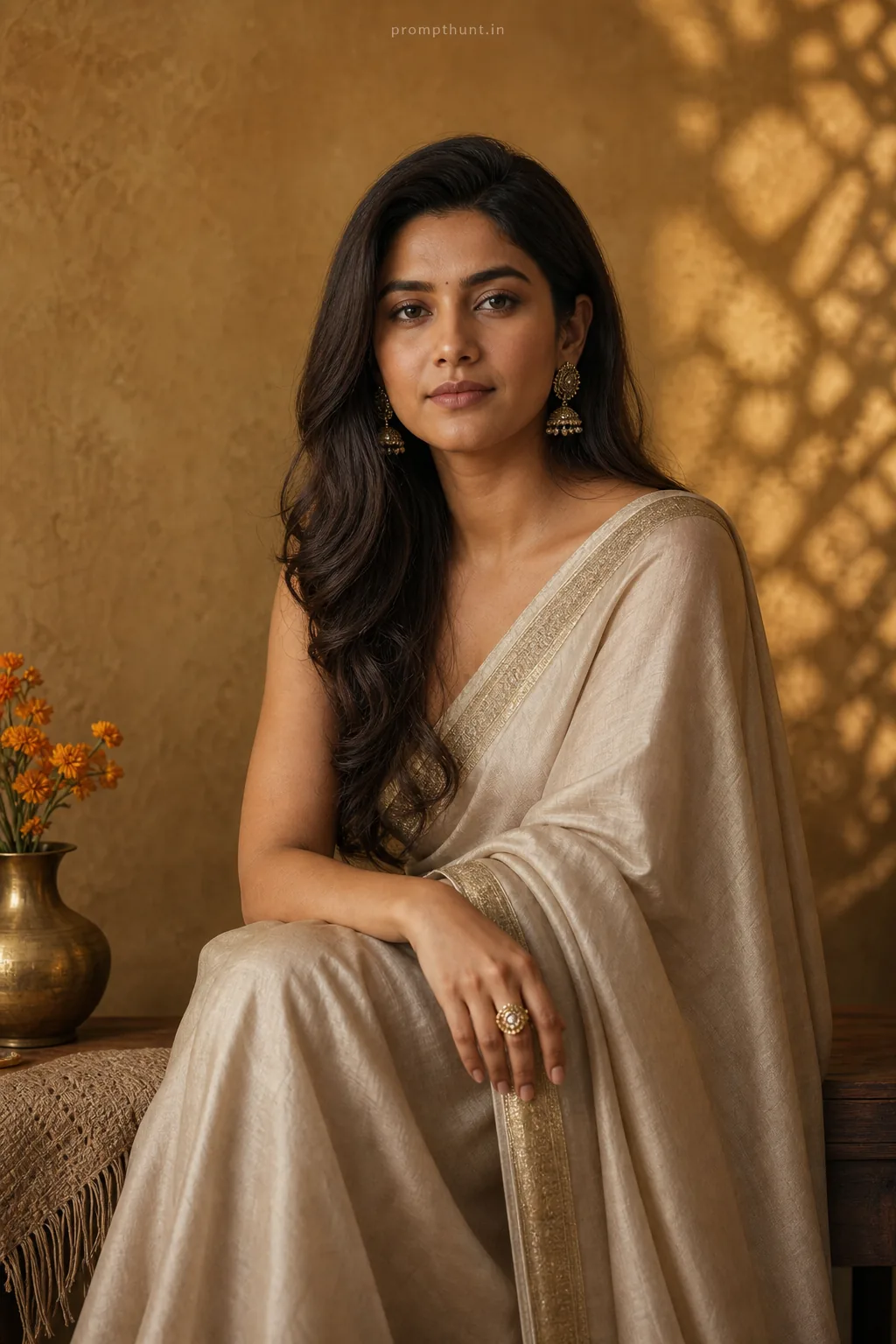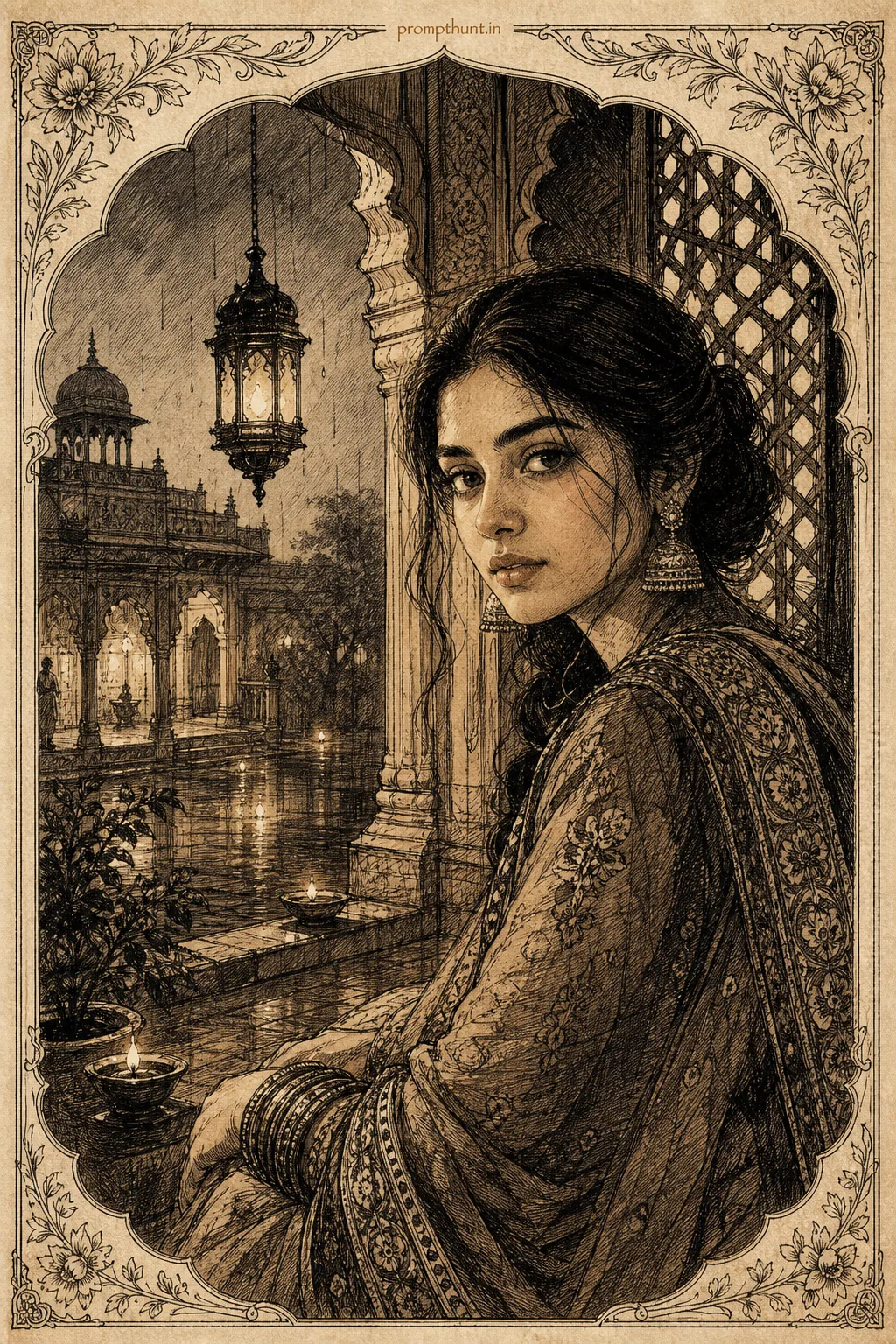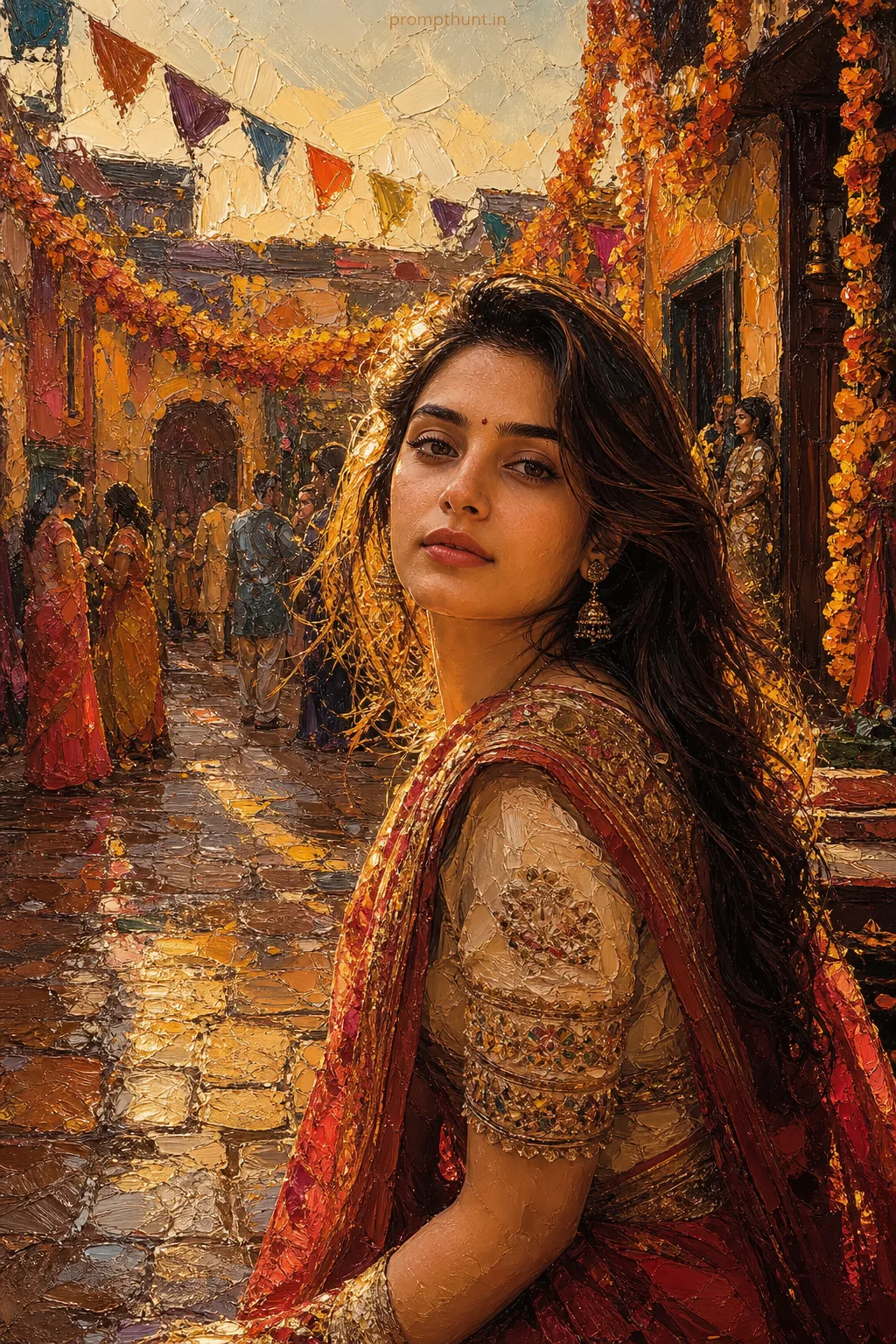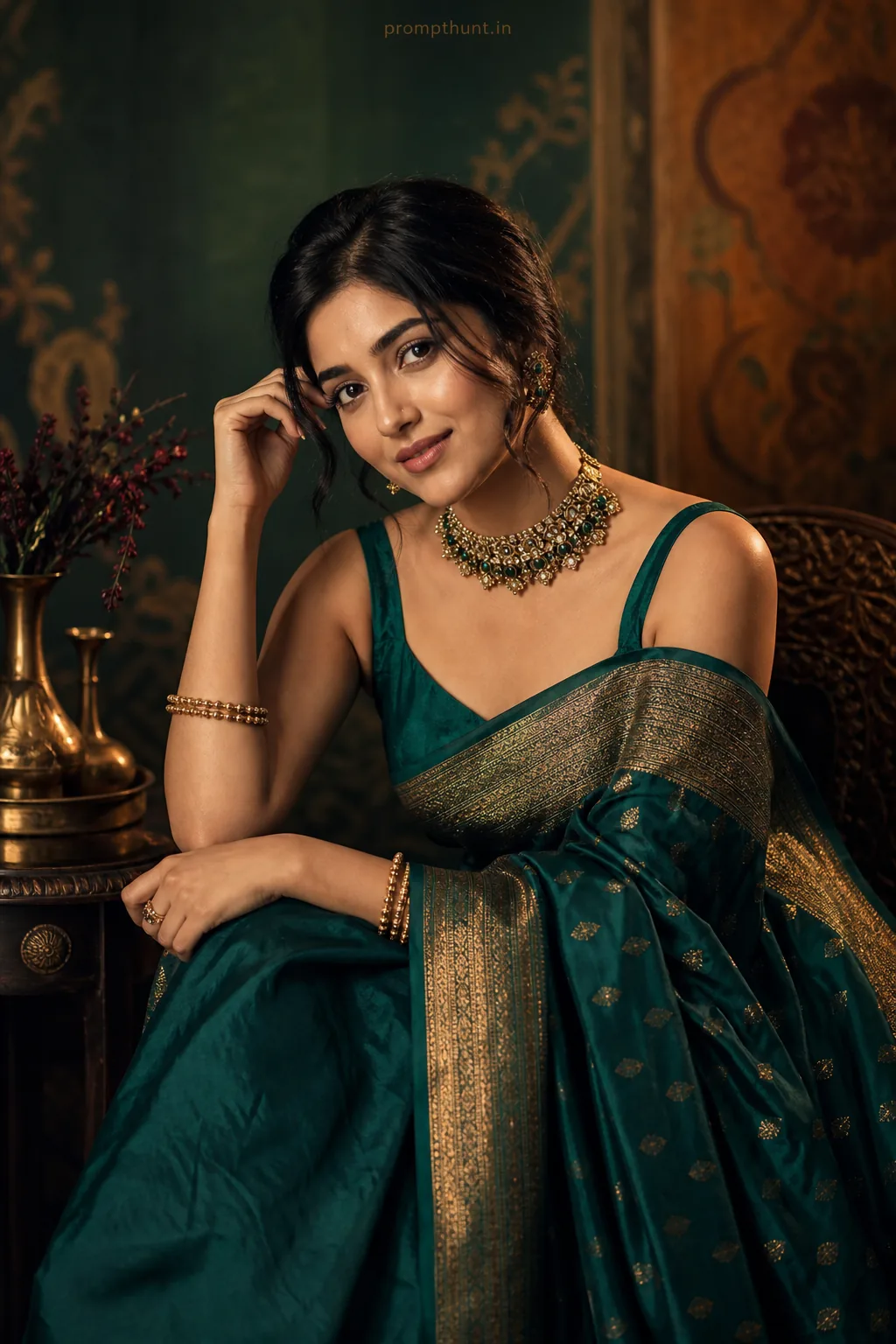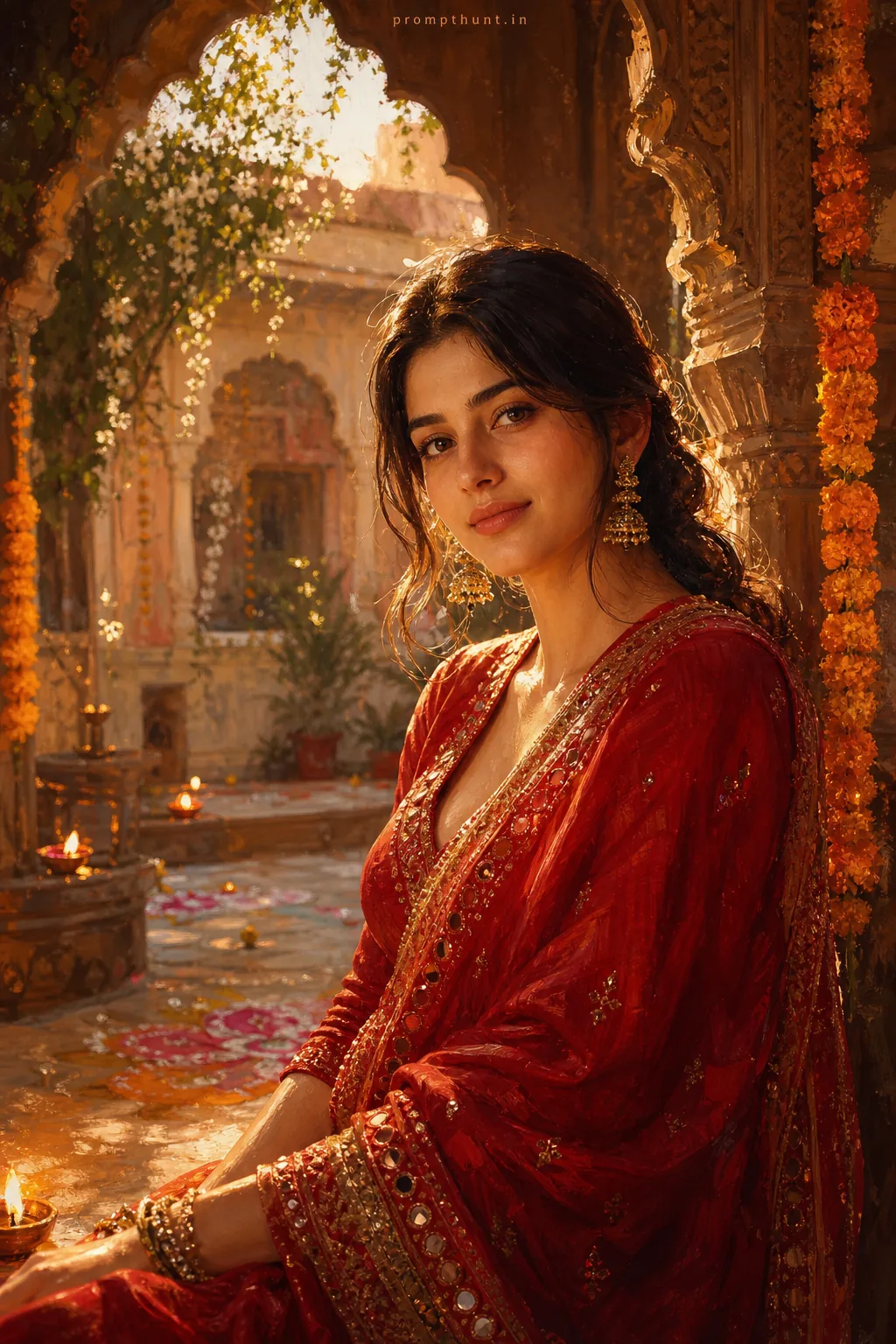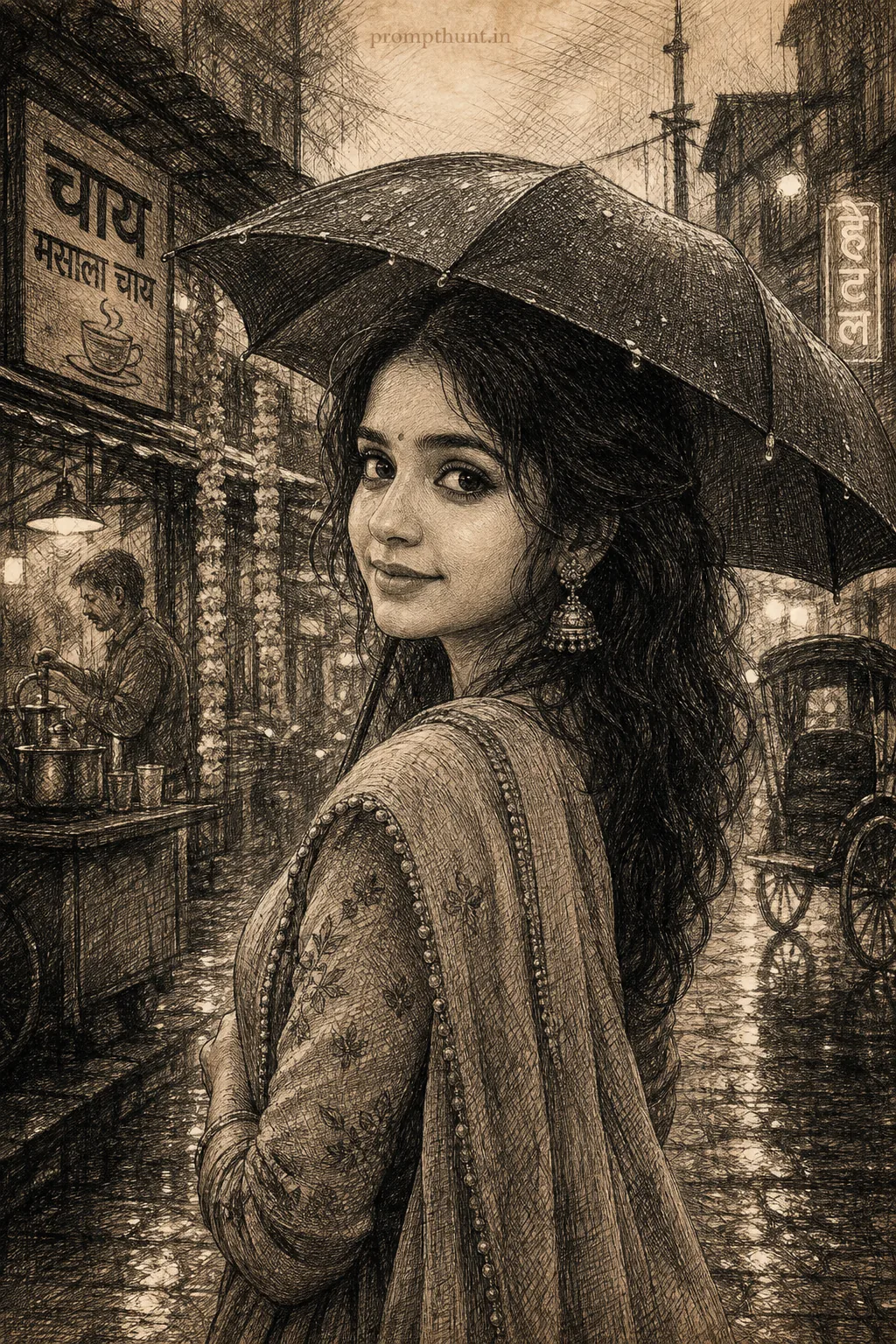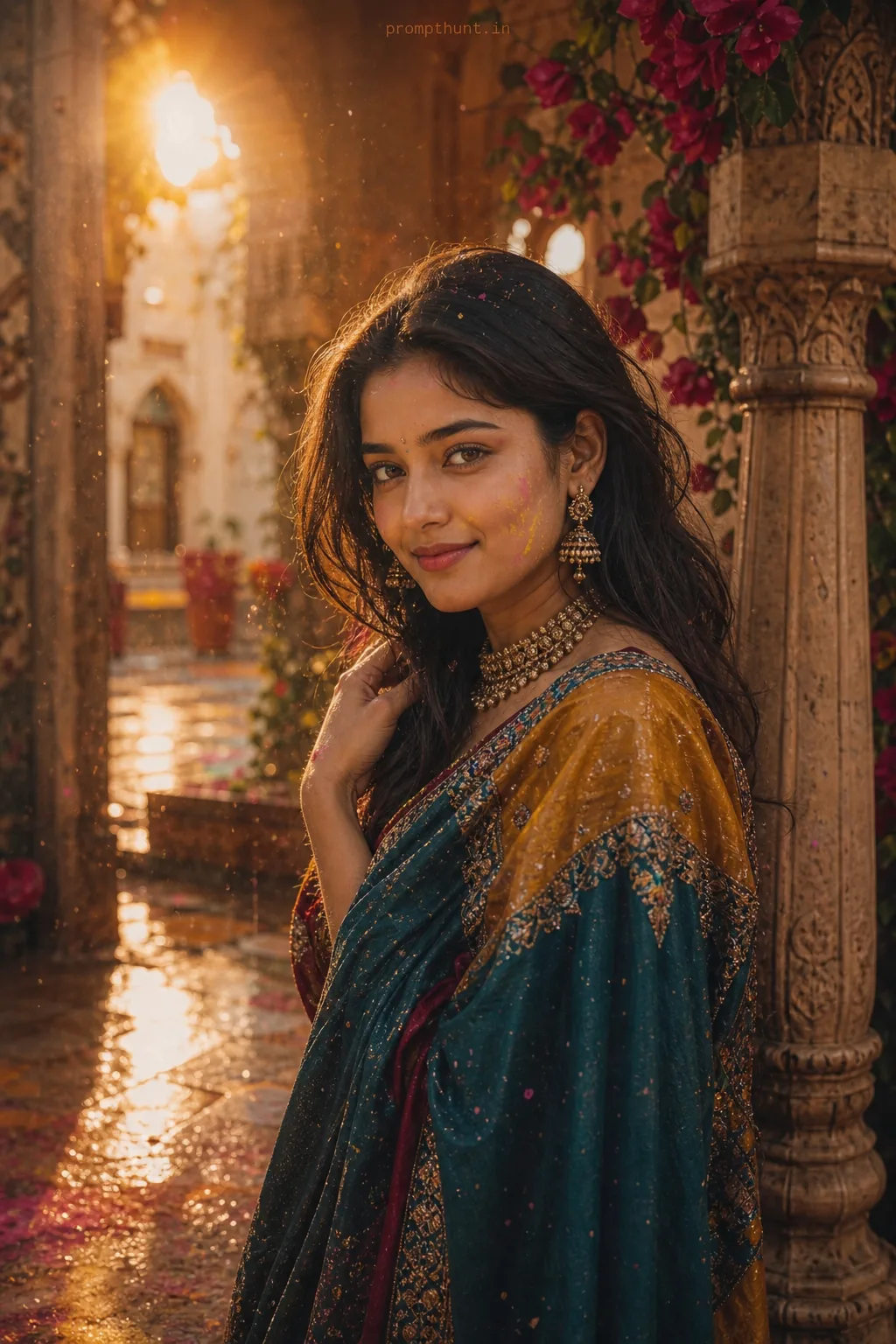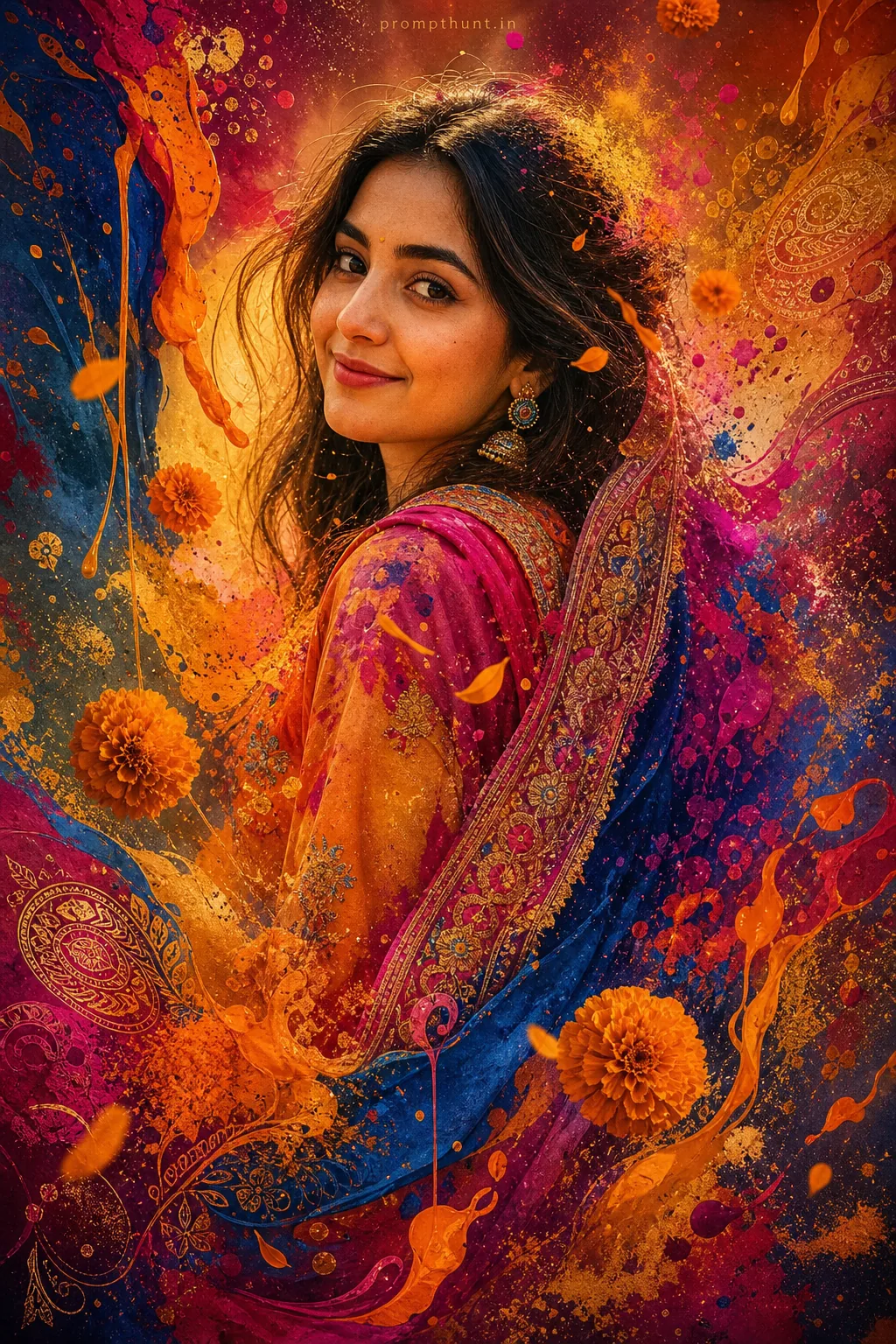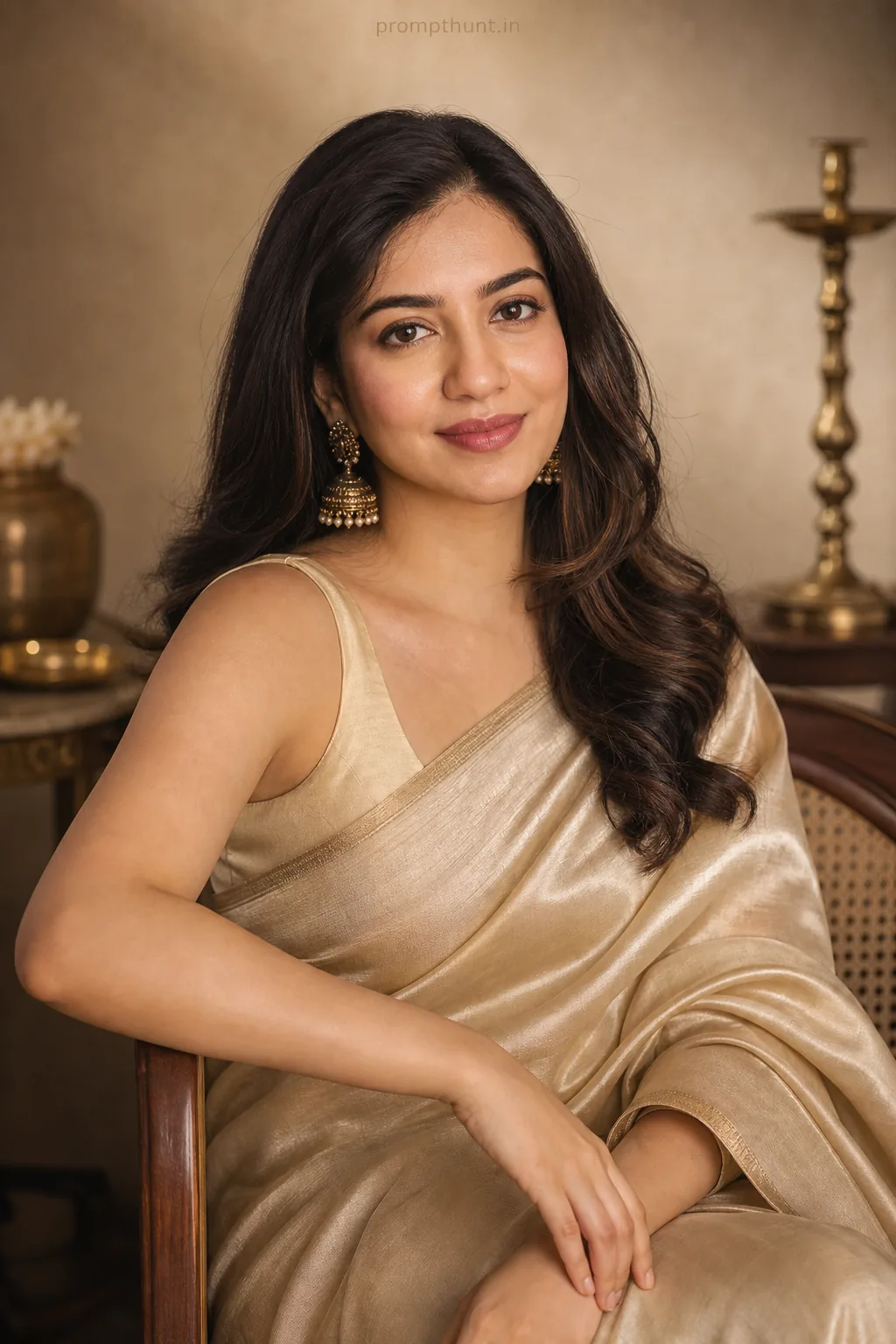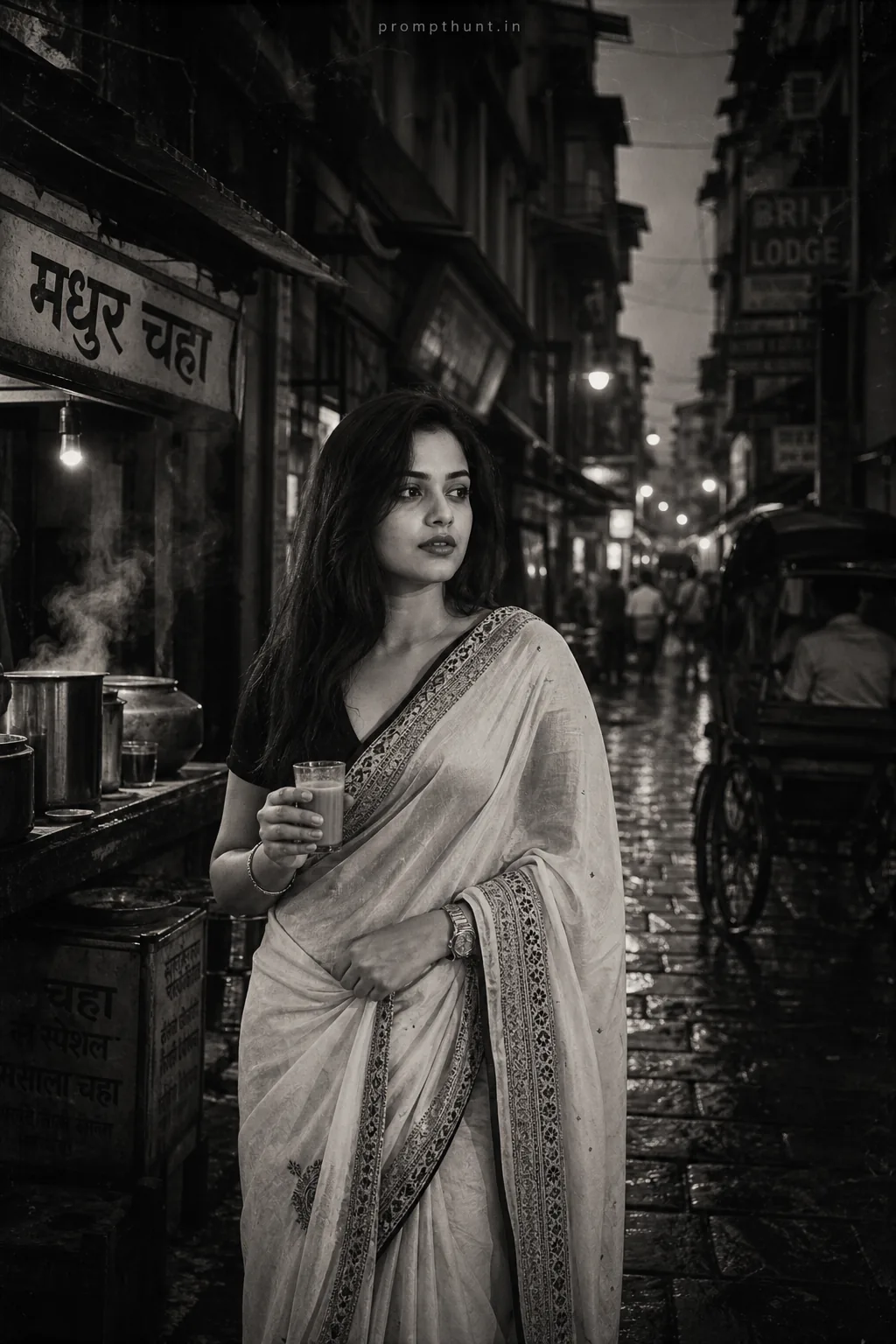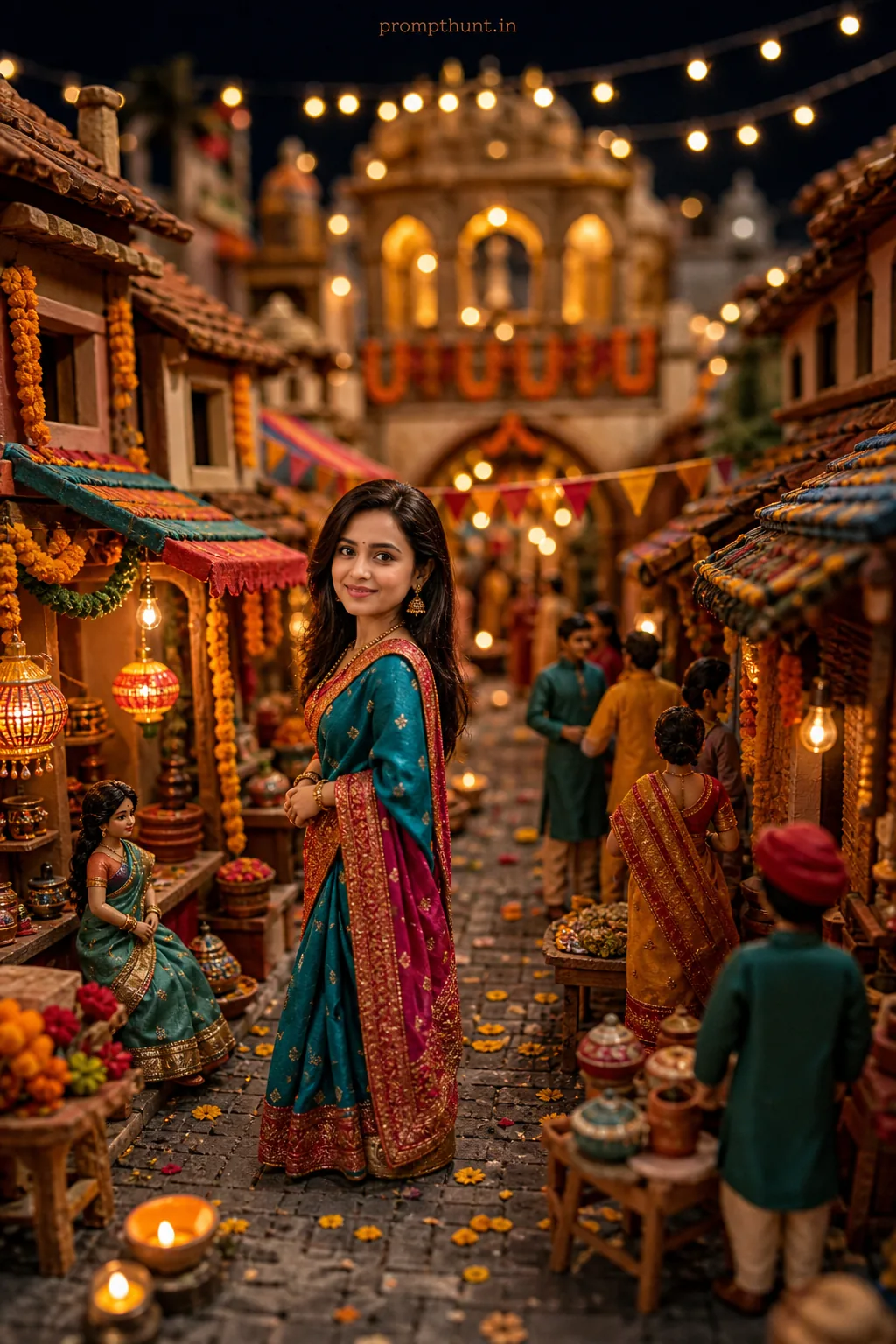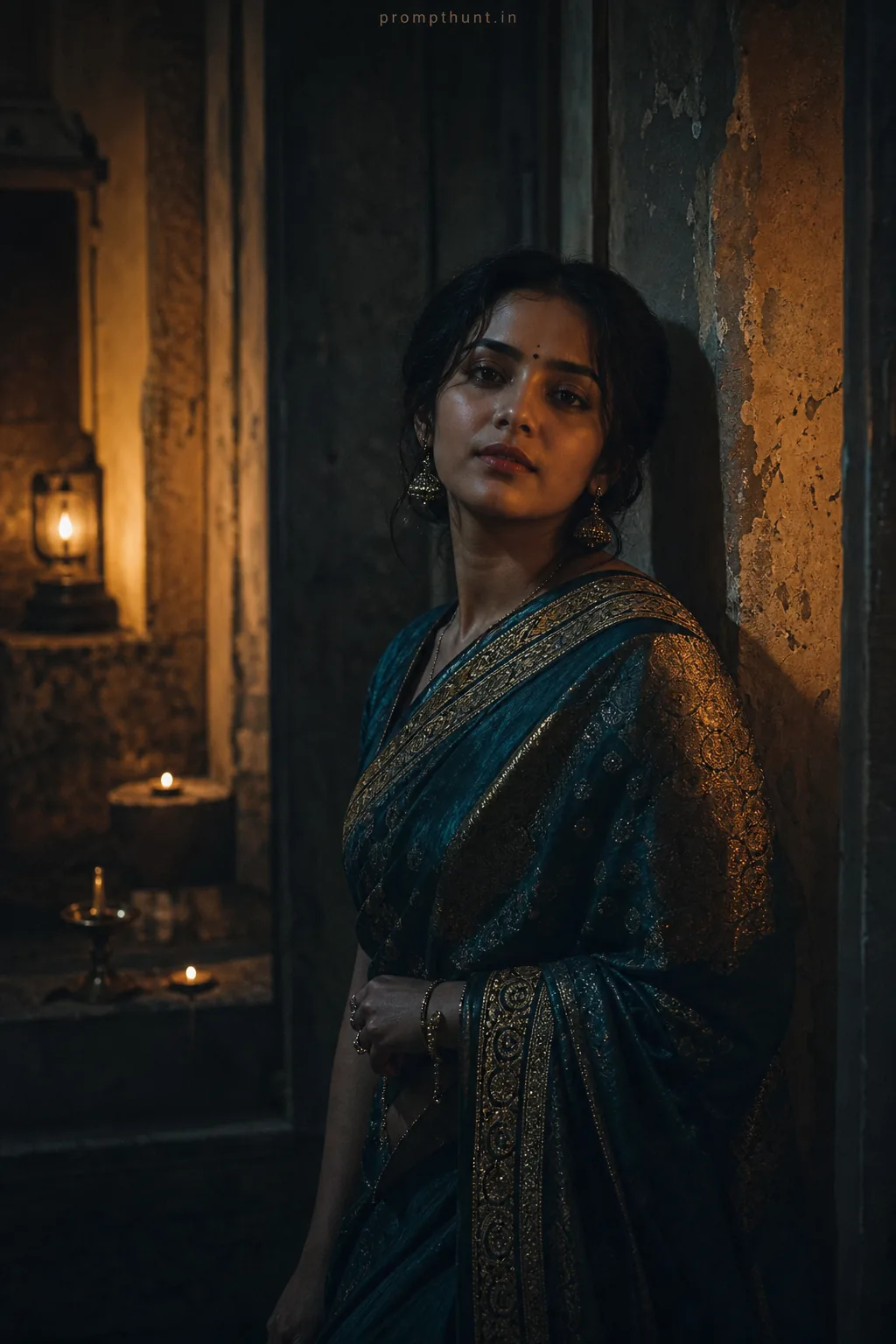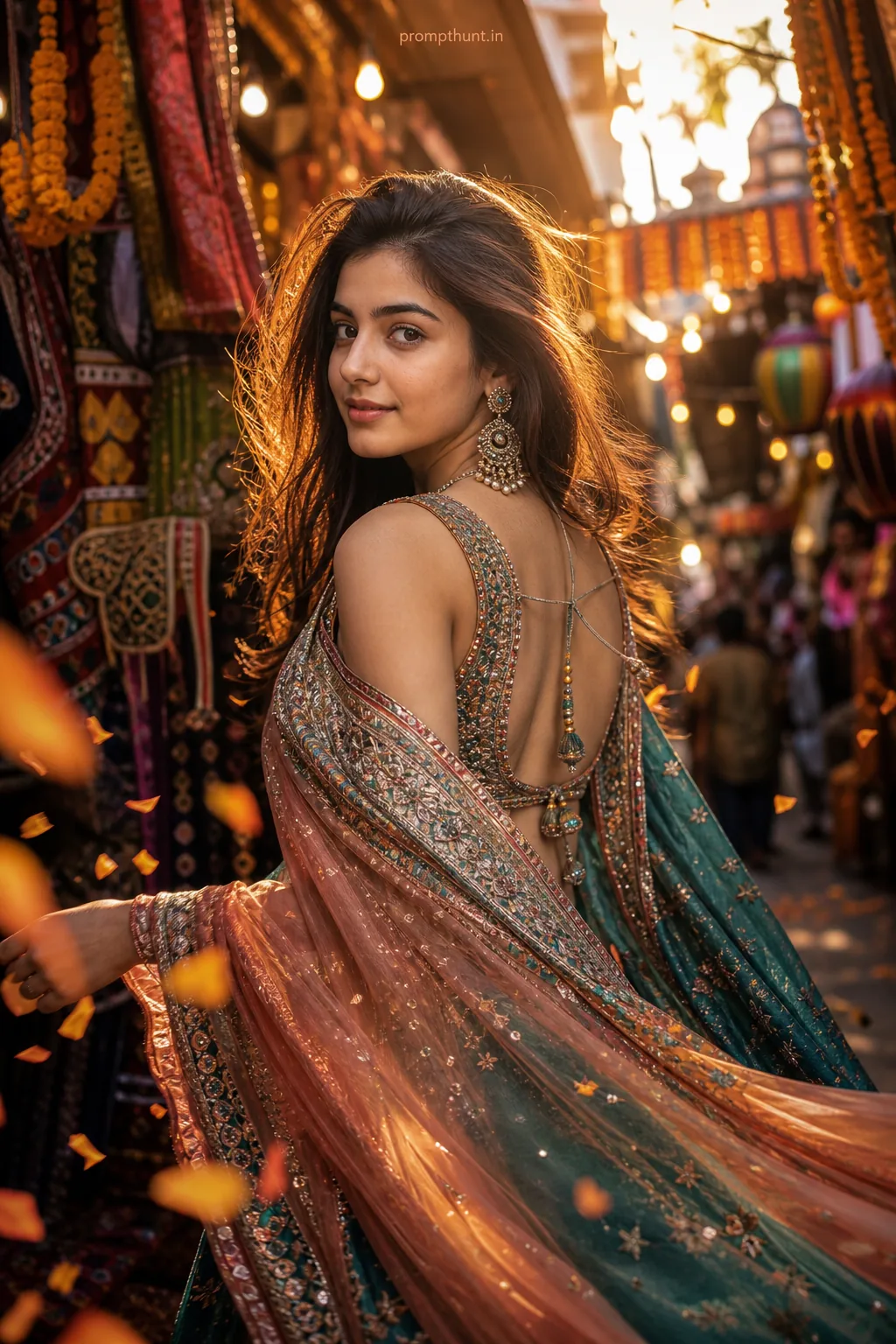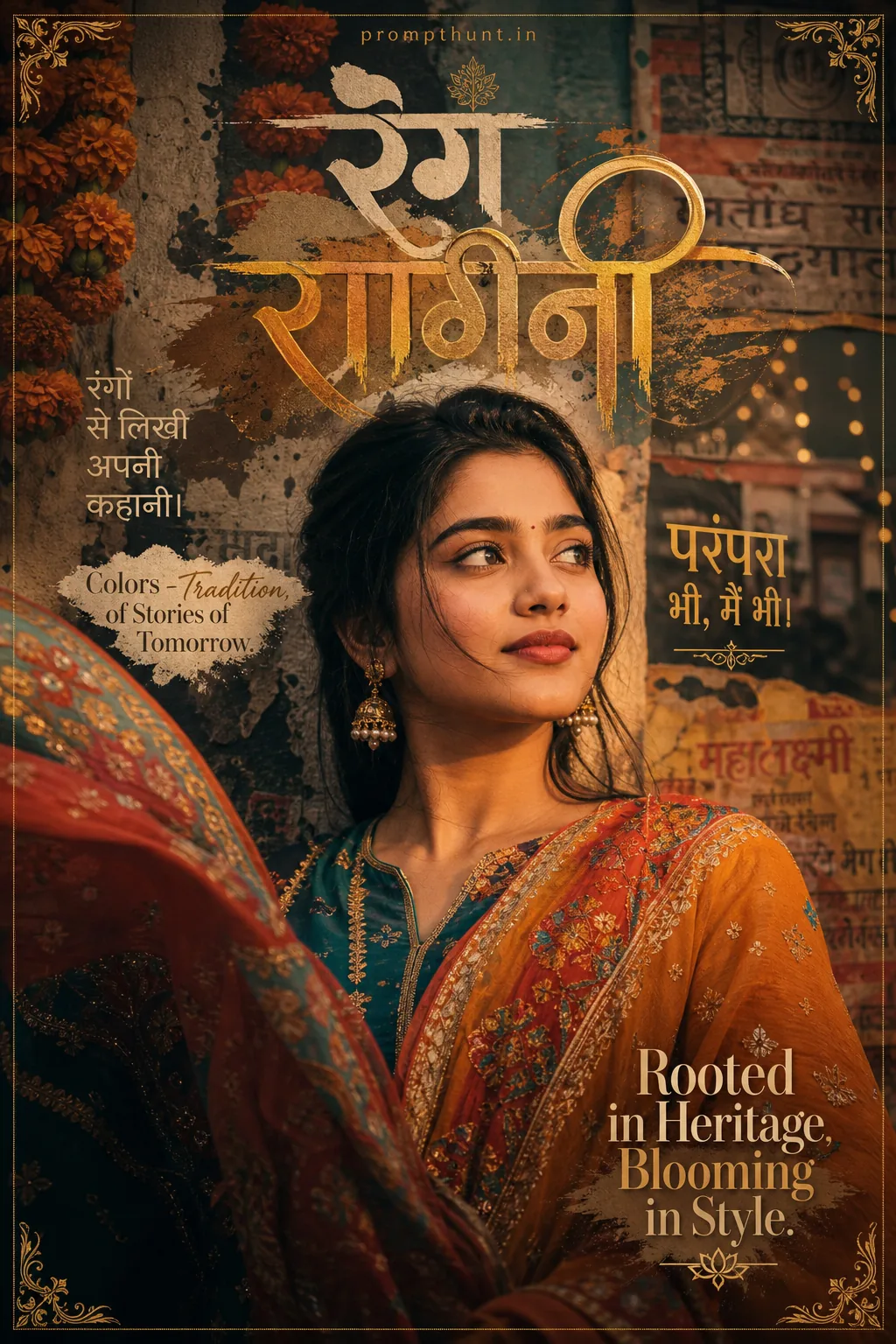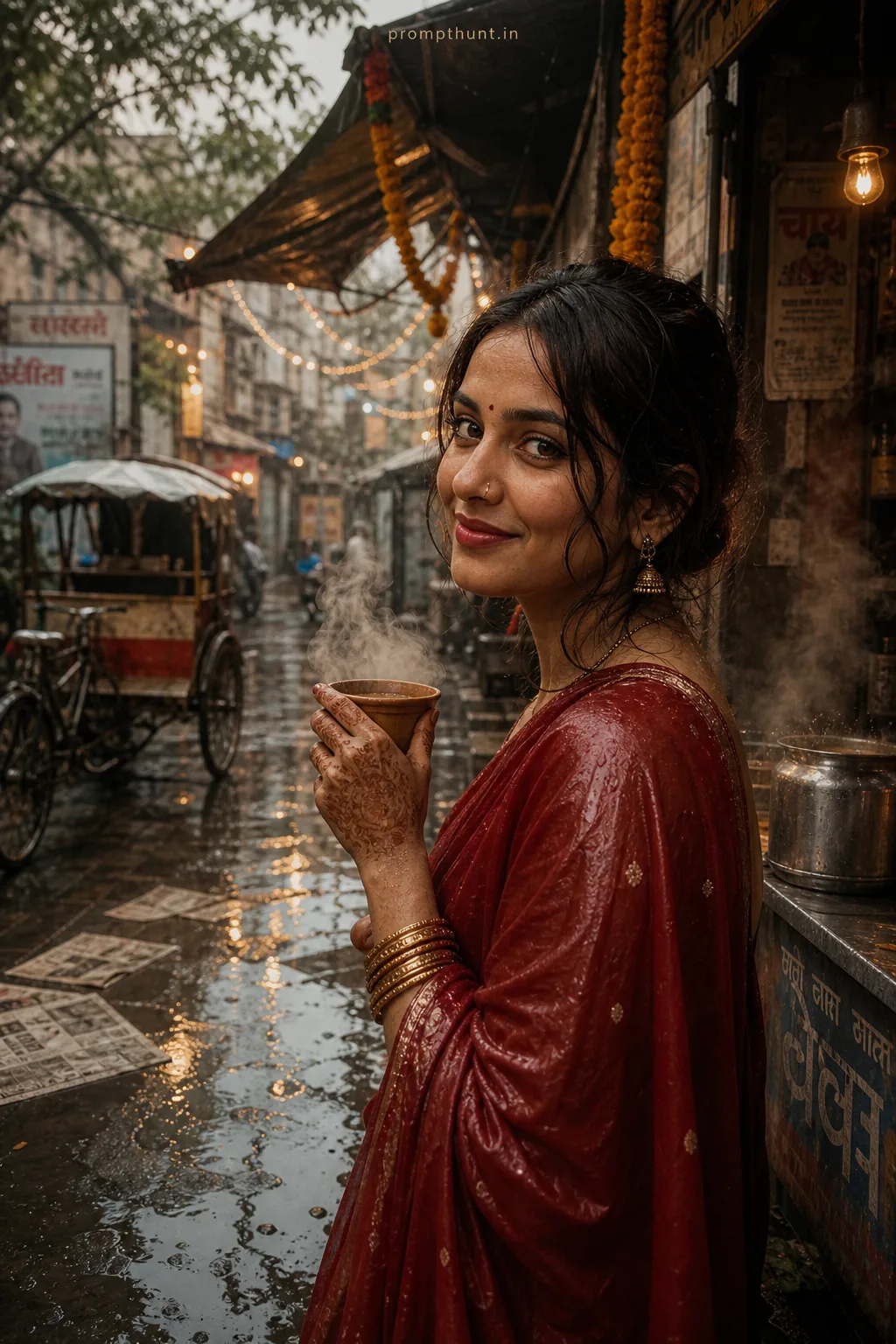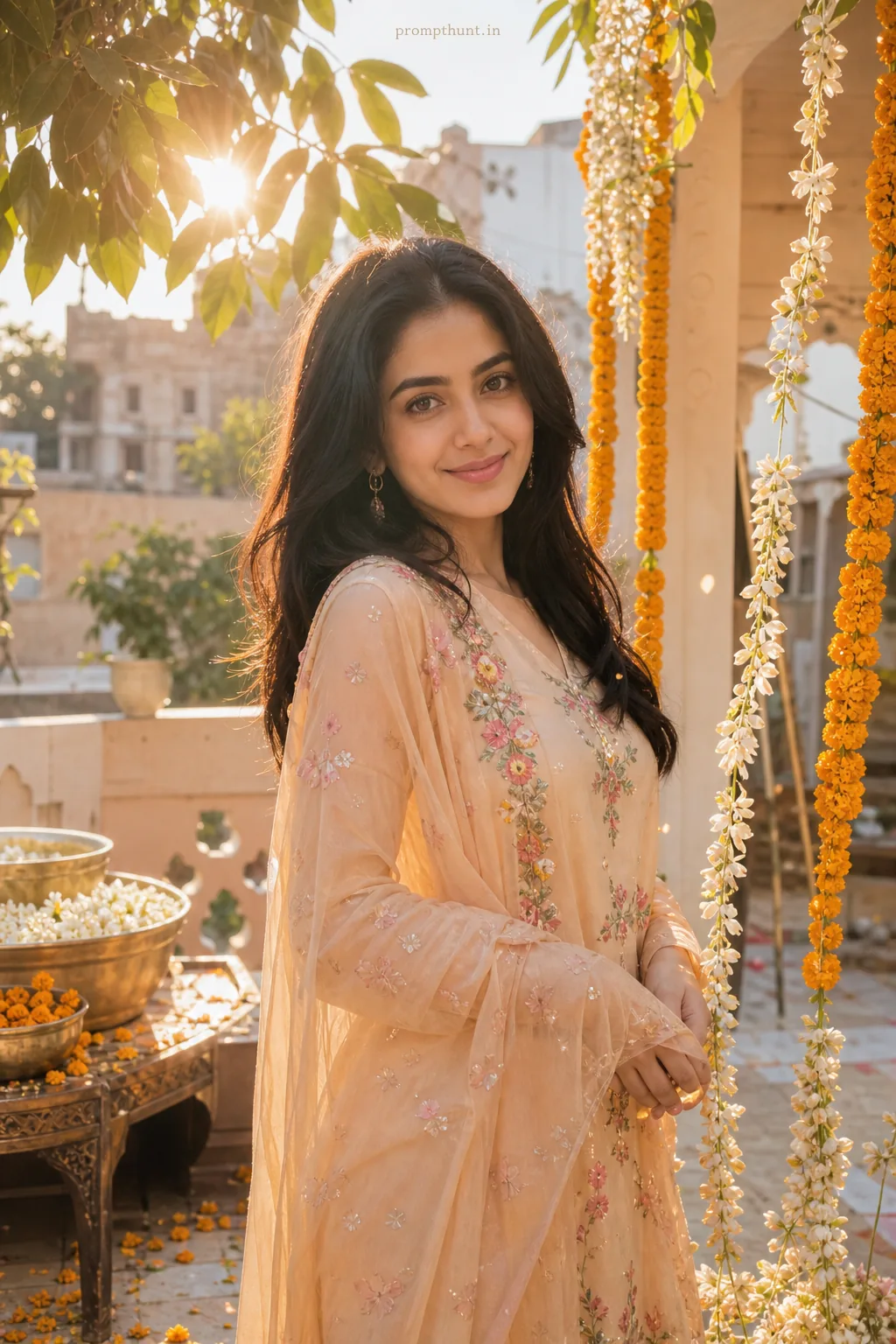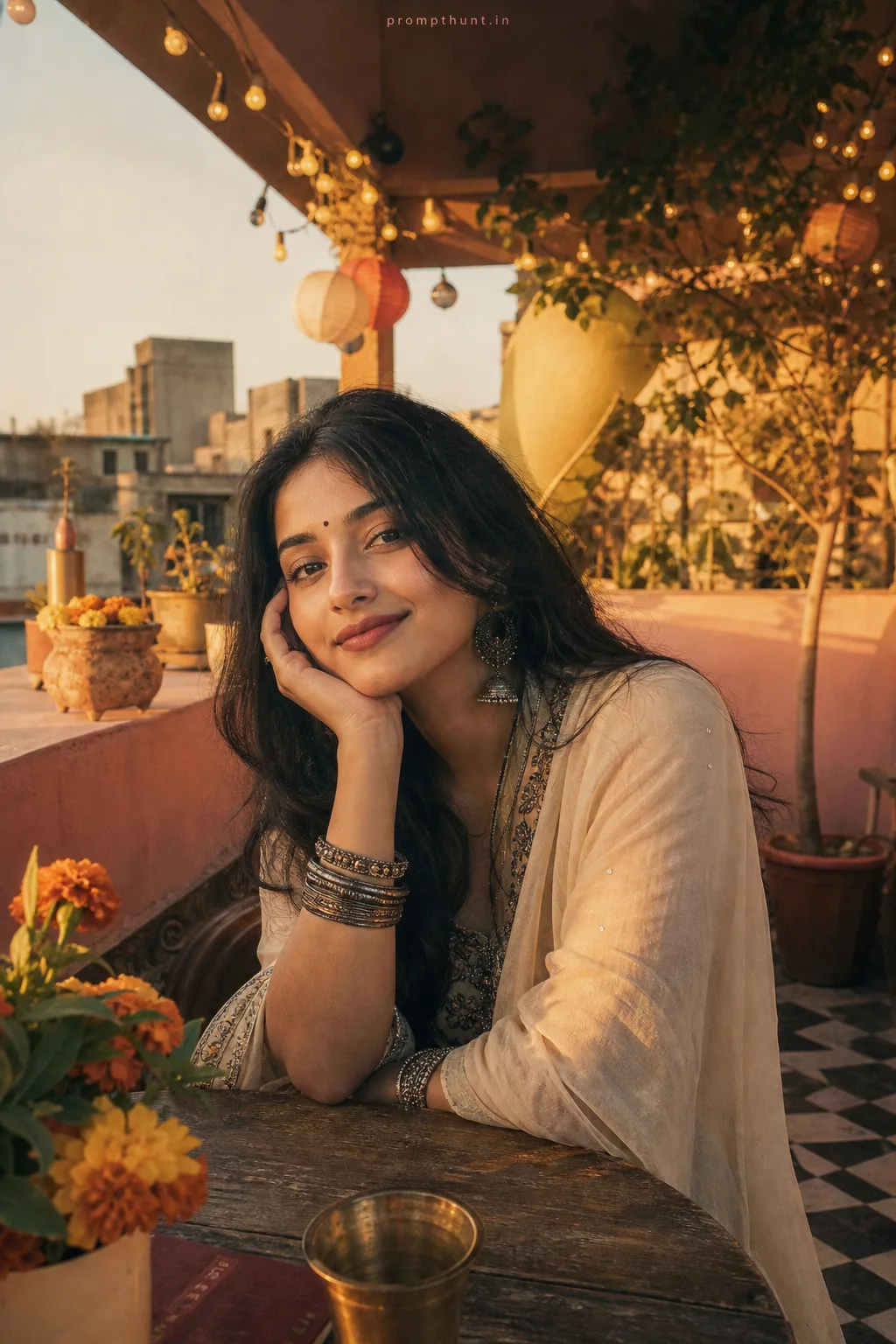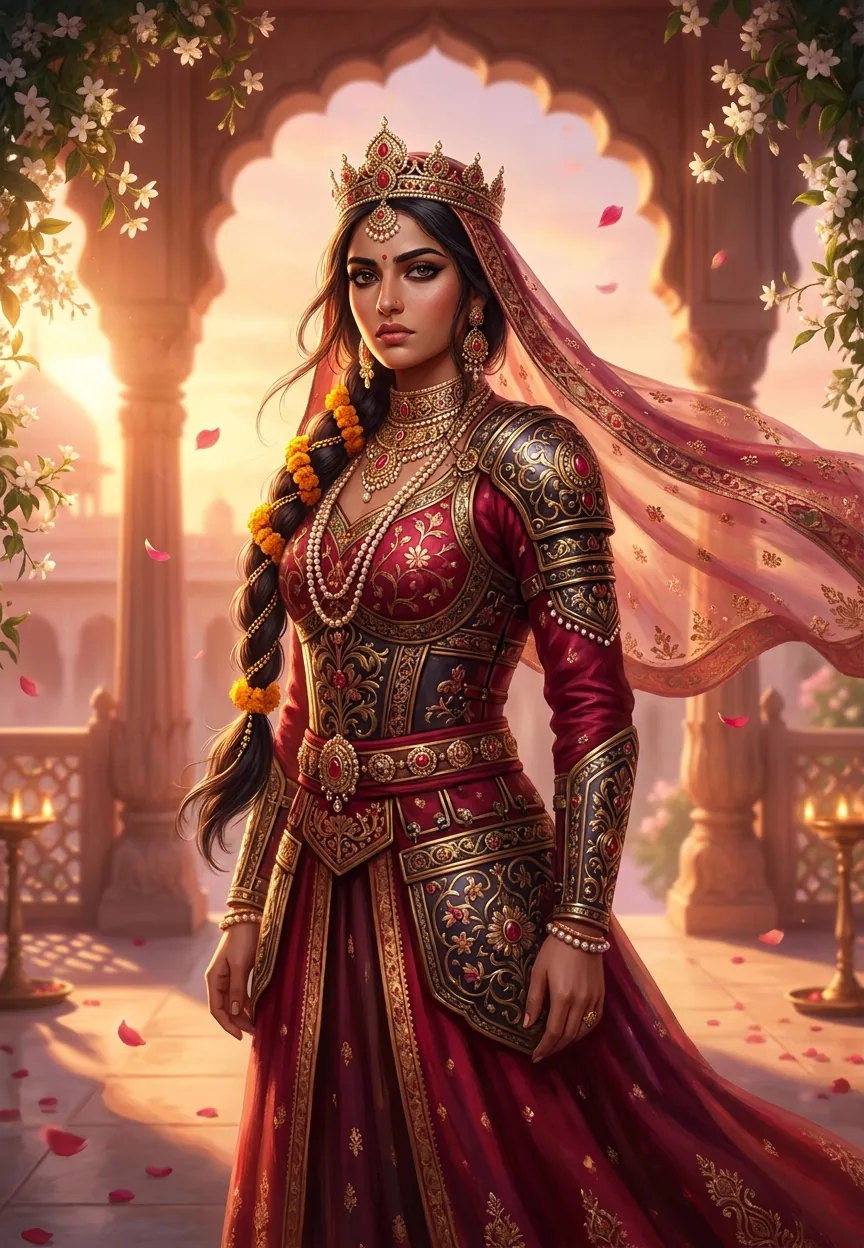
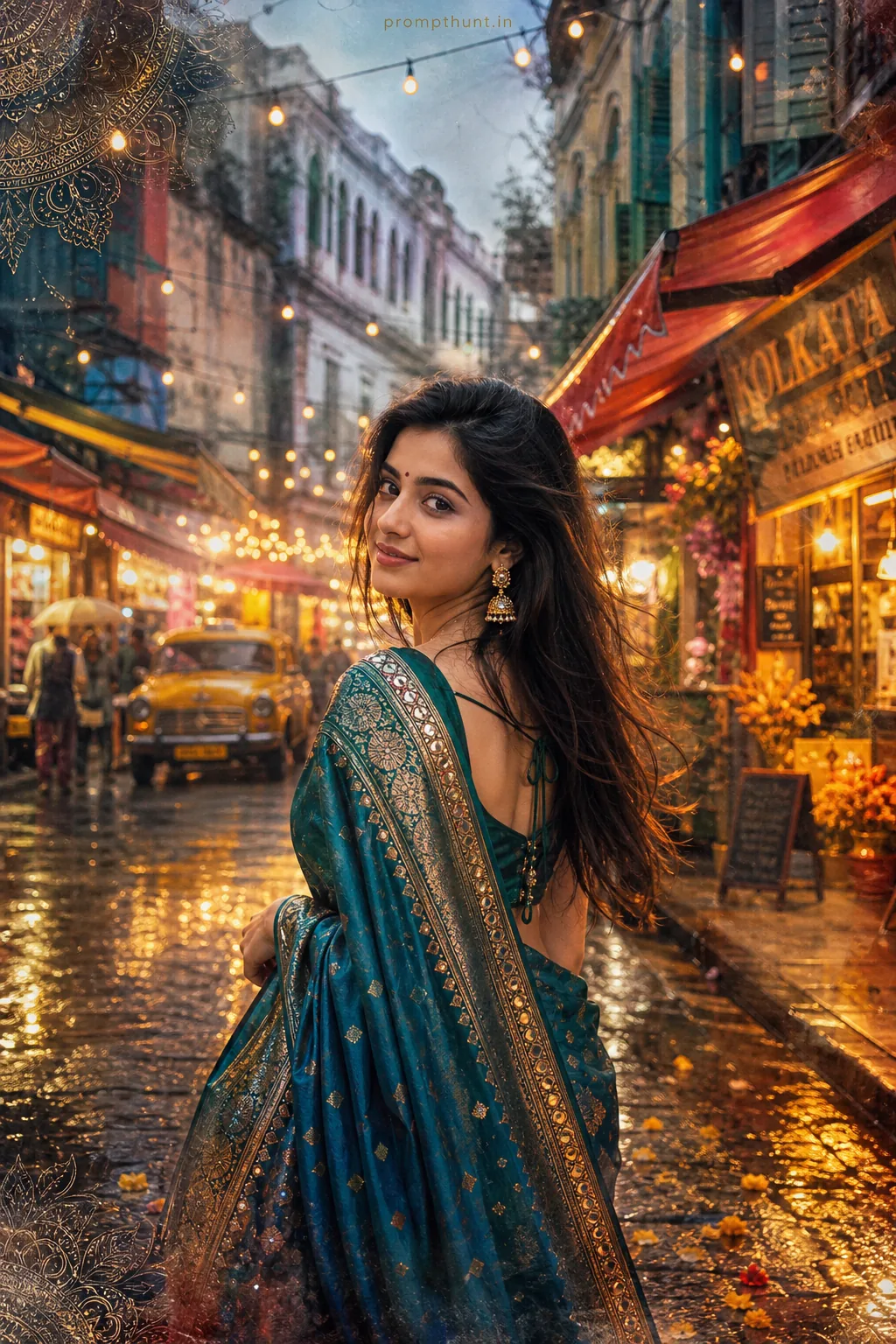
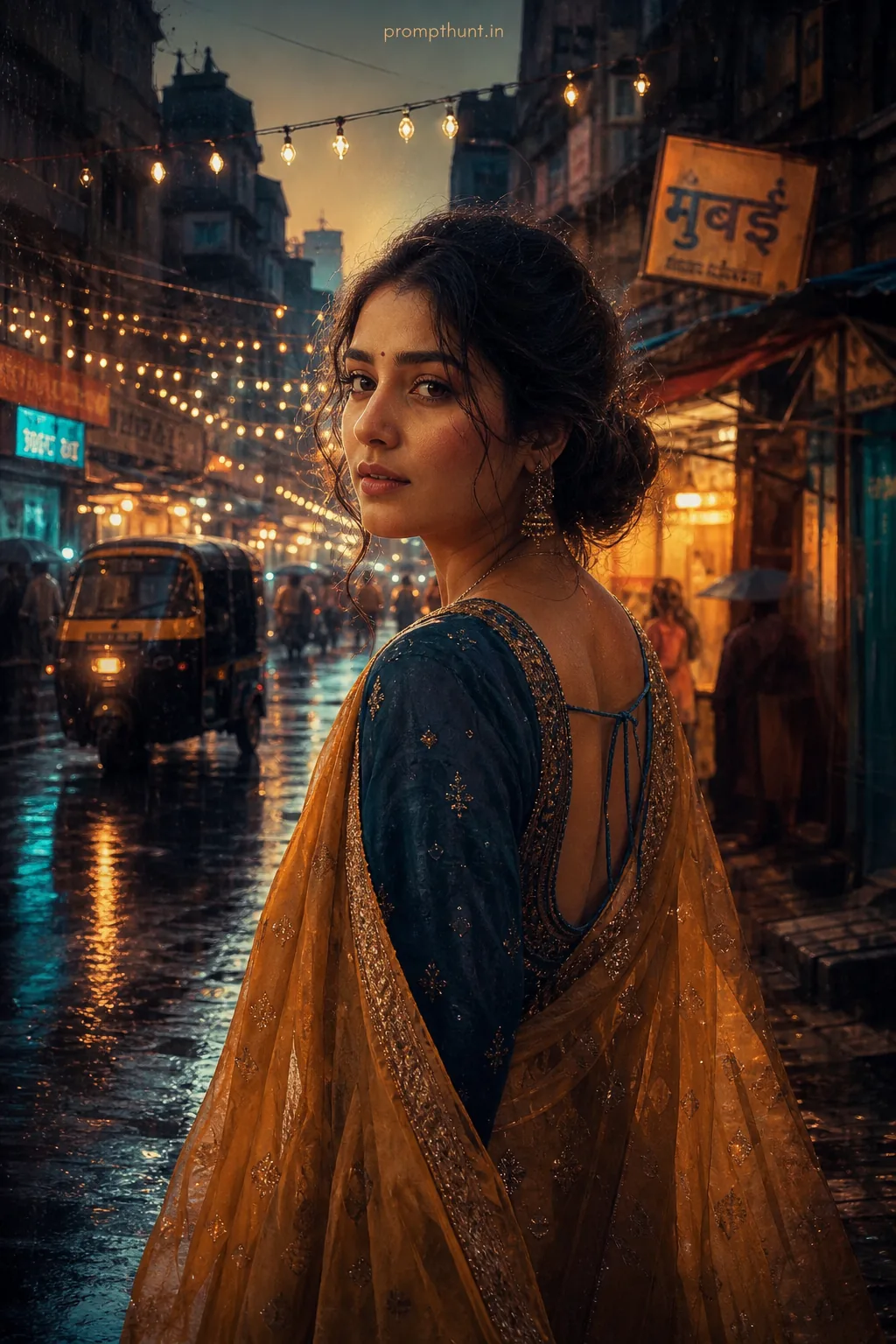

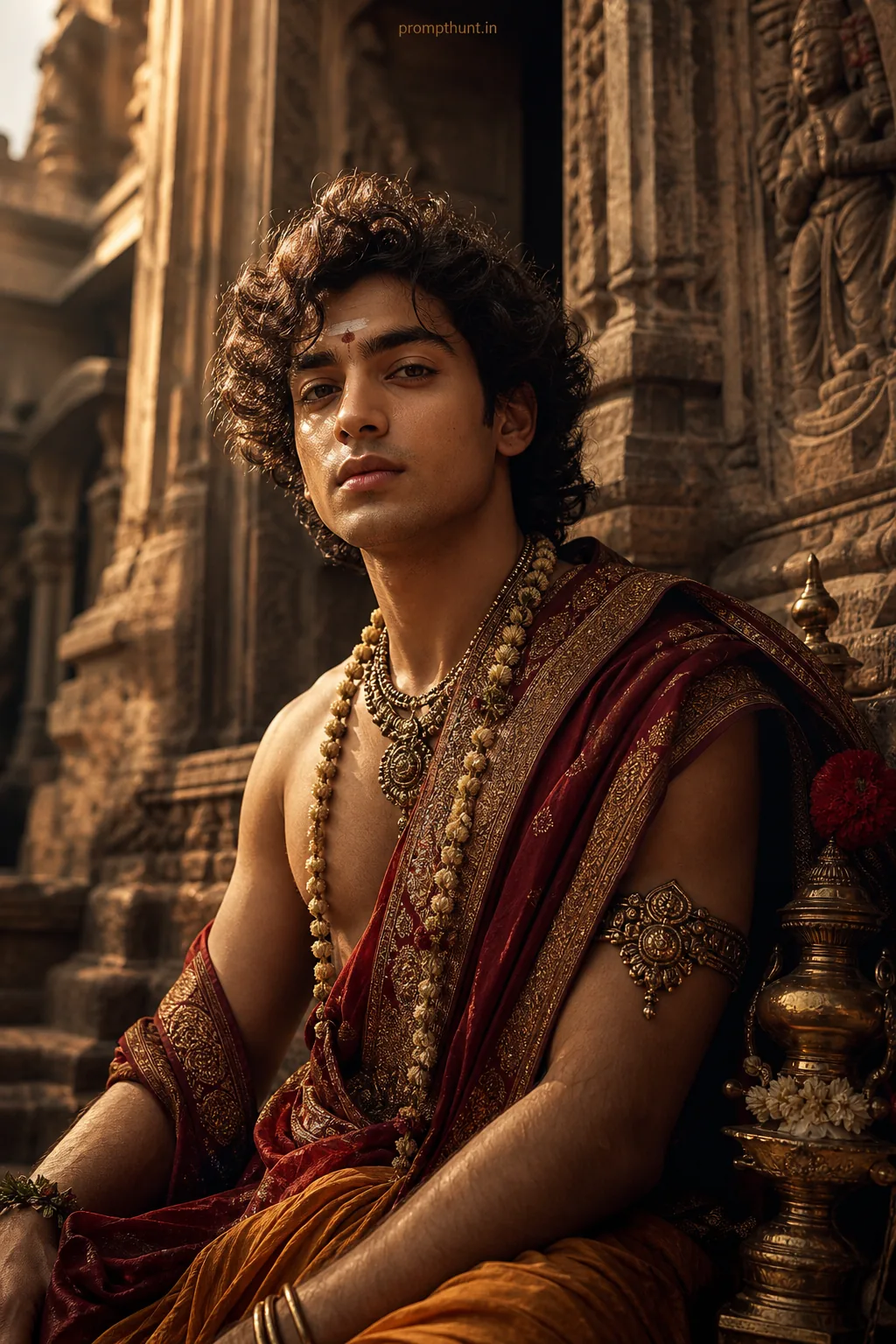
The Royal Mughal Warrior Queen prompt transforms a portrait photo into a cinematic AI artwork featuring ornate Mughal armour, jewelled crowns, palace courtyards, and dramatic golden-hour lighting. Use it in Gemini, Adobe Firefly, or any advanced image generator. Paste the full prompt, upload a clear front-facing portrait, and expect hyperrealistic results with painterly detail in about 30 seconds.
Royal Mughal Warrior Queen Gemini AI Photo Editing Prompt
Somewhere between a Bollywood costume department and a history museum having an absolutely brilliant fever dream, this prompt exists. The Royal Mughal Warrior Queen AI art style has been quietly setting Indian Instagram on fire — and for good reason. It takes a standard portrait photo and returns something that looks like it was commissioned by an emperor, painted by a master, and filtered through a cinema camera. All without touching a single brush. The AI art results are genuinely jaw-dropping, and the prompt is the whole game.
Paste the full prompt below into Gemini or your preferred AI image generator, upload a clear front-facing portrait, and your photo comes back looking like it belongs on the wall of a Rajasthan palace.
What Is the Mughal Warrior Queen AI Art Style
It is exactly what it sounds like — and then some. This style blends two things that sound like opposites: the delicate ornamental craft of Mughal architecture and the raw power of a warrior. Think jali stonework patterns on armour. Think rubies and pearls sitting next to battle-ready shoulders. Think kajal-lined eyes that could command an army and simultaneously look magnificent doing it.
The visual language pulls from Mughal miniature paintings — that rich flatness, the floral borders, the jewel-toned palettes. Then it layers on cinematic photography techniques: rim lighting, bokeh, depth of field, golden-hour warmth. The result sits somewhere between a museum painting and a Netflix historical drama. Good ones, not the ones where the armour is clearly foam.
This is AI art working at its most ambitious. Hyperrealistic skin texture. Painterly brush strokes on the fabric. Diyas blurred softly in the background. Jasmine vines climbing palace arches. It is a lot, and somehow it holds together.
The Prompt — Copy This Exactly
This is the full prompt. Do not trim it. Every clause is doing a job. The details about pearl embellishments, the marigold flowers in the hair, the 9:13 aspect ratio — all of it shapes the output. Shorter prompts get shorter results.
A strikingly beautiful young Indian woman transformed into a powerful Mughal warrior queen, standing tall in an ornate palace courtyard at golden hour, wearing an elaborate hand-crafted armor blended with rich royal silk — deep crimson and midnight gold — adorned with intricate floral jali patterns, pearl and ruby embellishments, and a jeweled crown with a dramatic flowing dupatta catching the wind. Her expression is fierce yet regal, kajal-lined eyes burning with quiet power, dark waist-length hair partially braided with marigold flowers and golden chains. Background features grand Mughal archways, blooming jasmine vines, soft bokeh of diyas and rose petals floating in the air, warm amber and rose-gold light casting cinematic shadows. Digital AI art style with hyperrealistic skin texture, painterly brush stroke details on clothing, dramatic rim lighting, ethereal glow effect, ultra-detailed 8K resolution, vertical 9:13 portrait composition, cinematic depth of field, trending Indian Instagram aesthetic.
How to Use This Prompt — Step by Step
You have got a few good options here. Gemini is in the title, so start there. But this prompt also runs well on Adobe Firefly, Midjourney, and Leonardo AI. Each handles the painterly detail slightly differently. Firefly leans warmer. Midjourney gets a bit more dramatic with the shadows. Try one, then another. Rule of thumb: whichever tool gives you the best skin texture on the first run, stick with it.
Step one: grab a clear, front-facing portrait photo. Good lighting. Eyes visible. No heavy filters already applied — the AI needs something clean to work with. Think passport photo energy, minus the dead-eyed government-building expression.
Step two: open your chosen AI tool. In Gemini, go to the image generation section. In Midjourney, type your prompt after the slash command. In Firefly, paste it into the text-to-image box.
Step three: paste the full prompt. Upload your portrait if the tool supports image-to-image generation. If it is text-to-image only, the prompt still generates a standalone result — it just will not carry your specific likeness across.
Step four: set the aspect ratio to 9:13 if the tool allows custom ratios. Portrait orientation. This is the composition the prompt was written for.
Step five: generate. Wait roughly 20 to 45 seconds. Do not panic if the first result looks slightly off — run it two or three times and pick the best. The AI is not being lazy. It is just indecisive. Relatable, honestly.
Tips for Best Results
Nine times out of ten, the first run is good but not great. Here is what makes the difference.
Keep the source photo well-lit and neutral. Harsh shadows in the original confuse the AI when it is trying to apply its own dramatic rim lighting. Two light sources fighting is nobody's idea of a good time.
Add your name or a specific feature as a suffix if the tool supports personal prompts. Something like "retain facial features of subject" nudges image-to-image tools to preserve likeness better.
If the jewellery comes out muddy, add "highly detailed gold filigree, sharp jewel rendering" at the end of the prompt. The original prompt covers this broadly, but reinforcing it helps on tools that tend to blob out fine detail.
The dupatta catching the wind is a small detail that makes the whole image feel alive. If it is not showing up dramatically enough, add "flowing fabric motion blur, wind-swept dupatta" as a suffix.
For skin texture specifically — Firefly handles this best out of the box. Gemini occasionally goes slightly painterly on faces, which either looks gorgeous or slightly uncanny depending on your luck. Midjourney users can add "--style raw" to pull the realism up a notch.
Why This AI Art Style Is Trending in India
This one is not hard to figure out. There is a massive appetite right now for AI art that actually reflects Indian aesthetics — not as an afterthought, but as the entire point. Mughal architecture, South Asian jewellery, the specific warmth of golden hour over a courtyard, marigolds and diyas — these are not borrowed from somewhere else. This prompt was clearly written by someone who knows the difference between a jali pattern and a generic lattice, and that specificity shows in the results.
Indian Instagram creators have been hunting for a prompt that hits the same visual register as the big historical drama content — the Bajirao Mastani visual language, the Padmaavat colour grading — without requiring a film crew or a budget. This is it. The warrior queen framing also resonates culturally. Figures like Rani Lakshmibai and Chand Bibi are part of the shared cultural memory. An AI art style that positions the person in the photo inside that tradition lands differently than a generic fantasy queen edit.
It is also just very shareable. The vertical 9:13 format is built for Instagram Stories and Reels covers. Warm gold tones perform well in feeds. And a woman in Mughal armour looking like she could defeat an army and also look flawless doing it — that combination is not going to struggle for engagement.
Honest Opinion — When Not to Use This
Look, this prompt is genuinely brilliant. But it is not for every situation, and reckon I would be doing you a disservice not to say so.
If the source photo has multiple people in it, the AI will make choices you did not ask for. It might crown the wrong person. It might merge two faces into one slightly confused warrior. Use a solo portrait.
If someone has a very specific look they want preserved — unusual hair colour, distinctive features, strong personal style — this prompt is going to override all of that. The Mughal warrior queen aesthetic is strong. It absorbs whatever you feed it. That is a feature when you want the transformation, and a problem when you do not.
This is also not the right style for professional headshots, children's photos, or anything where the power-and-armour framing feels tonally off. Not every context calls for a warrior queen. Sometimes you just want a nice photo. Fair enough.
And a small technical note: some AI tools will stumble on the level of detail in this prompt and return a blurry or over-processed result. If that happens, split the prompt into two passes — environment in one, costume and portrait detail in the other — and composite them in Lightroom or Snapseed. More steps, better control.
Used in the right context, on the right image, with a tool that can handle the detail load? The results are extraordinary. This is one of the better AI art prompts I have seen for achieving that cinematic-historical-portrait sweet spot. The marigold flowers in the hair alone are worth the price of admission. (Free. The admission is free. You know what I mean.)
One Last Thing Before You Go
The Royal Mughal Warrior Queen prompt is long, specific, and completely worth every word. Paste it in full, start with a clean portrait, run it two or three