Gemini AI Photo Editing Prompts
6 hand-written prompts + 12 tested library prompts with results — copy one, paste it with your photo.
A Gemini AI photo editing prompt is a short, specific instruction you paste into Google Gemini together with your own photo, so Gemini restyles the background, outfit and lighting while keeping your face. The prompts below are written for Gemini’s image editing (the model people call “Nano Banana”), and every one ends with a face-lock line so the result still looks like you.
How to use these prompts
- Open gemini.google.com or the Gemini app and start a new chat.
- Tap the + button and upload a clear, front-facing photo.
- Copy a prompt from this page, paste it in, and send.
- If the face drifts, reply “keep my face exactly the same as the original photo” and regenerate.
Gemini AI Photo Editing Prompts — copy & paste
1. Golden hour cinematic portrait
2. Old money aesthetic
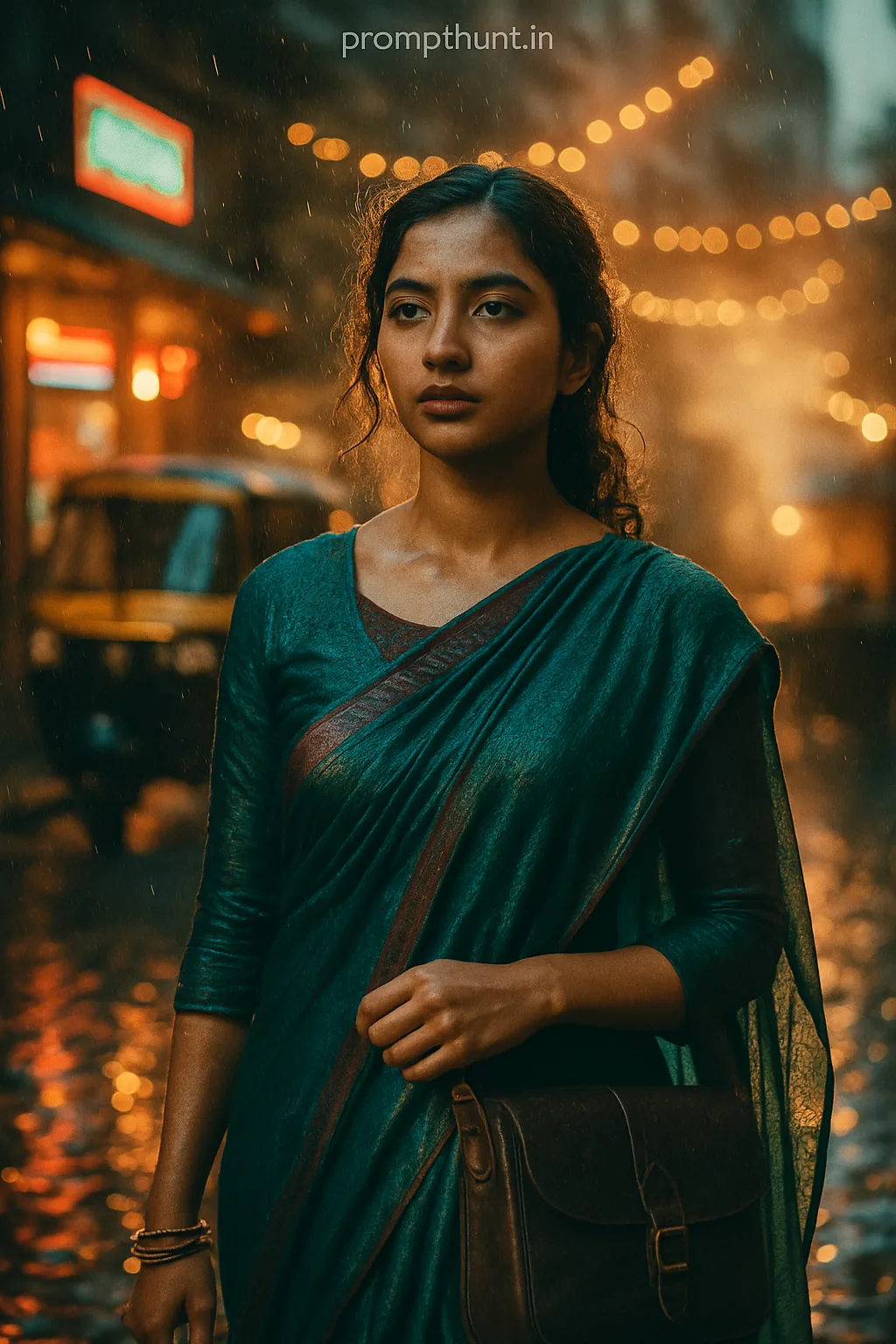
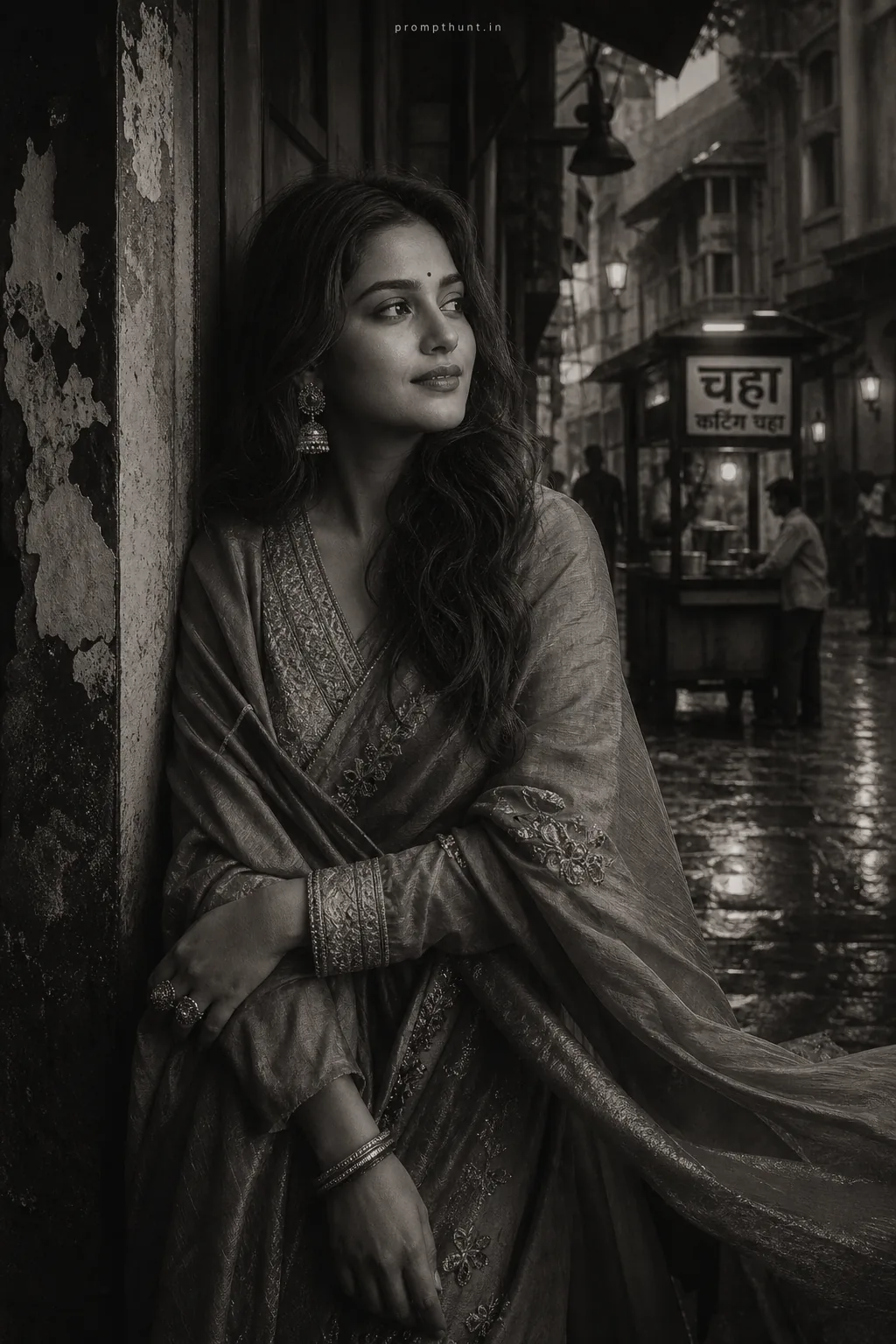
3. Rainy street mood
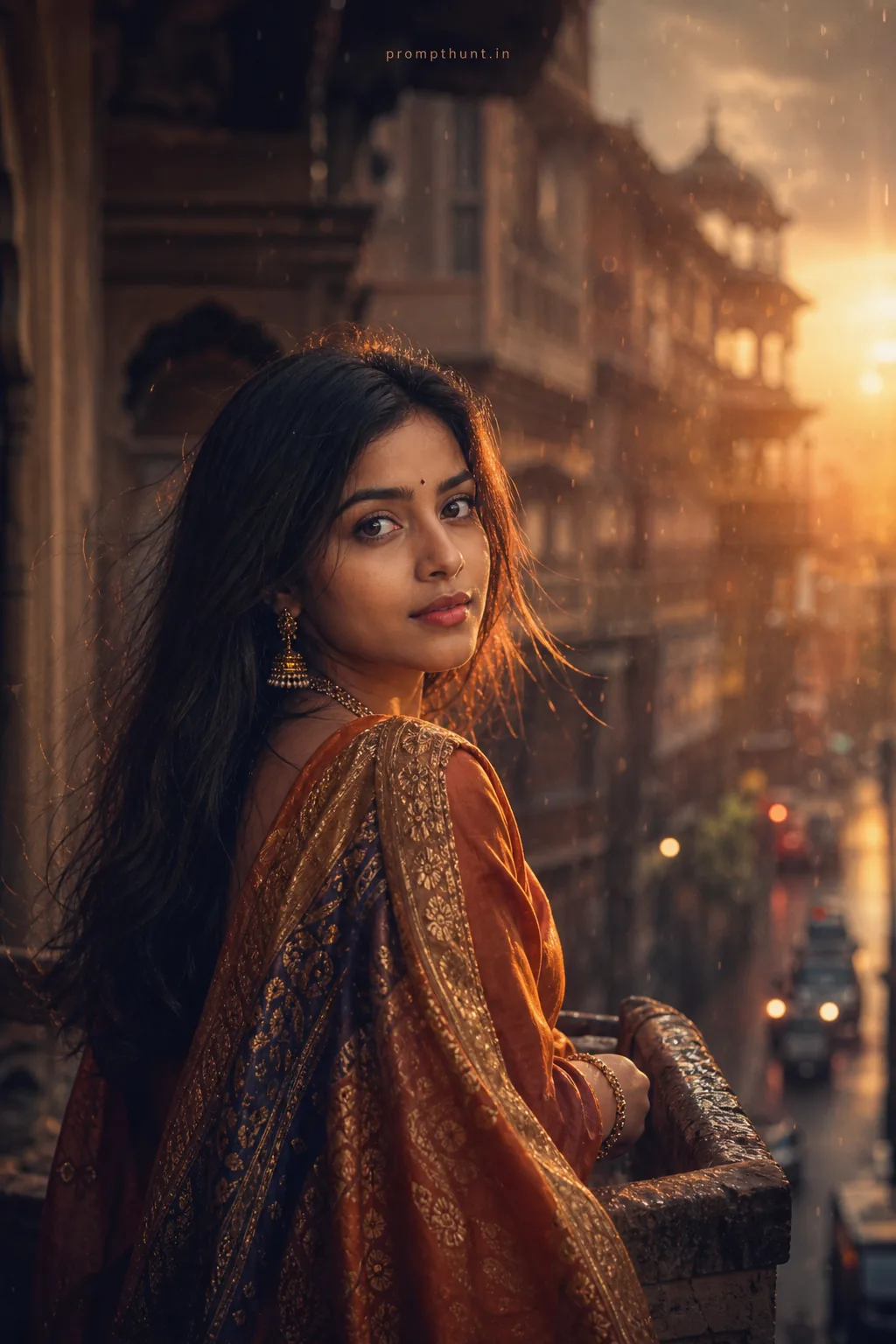
4. Royal heritage look
5. Clean studio headshot
6. Monochrome editorial
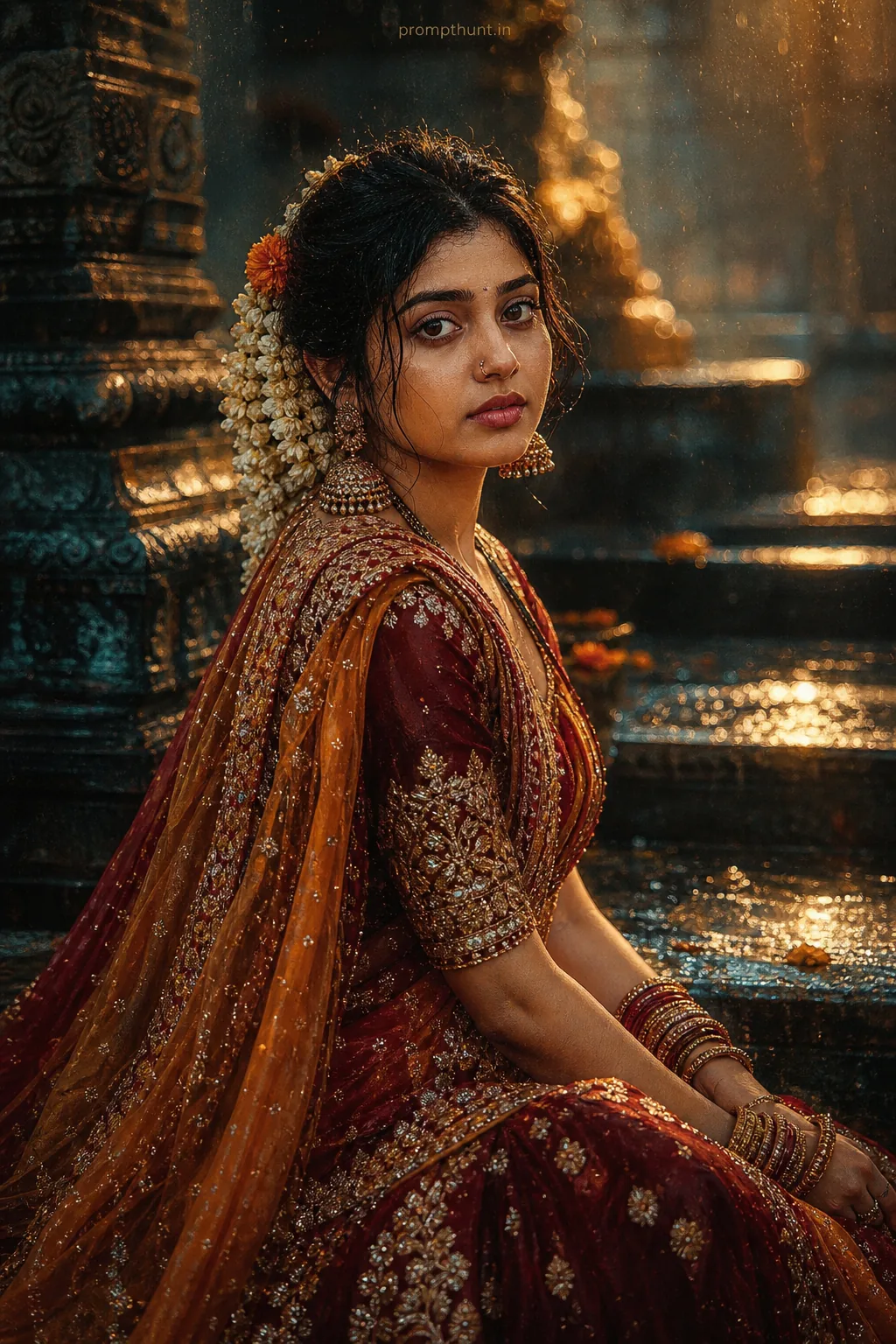
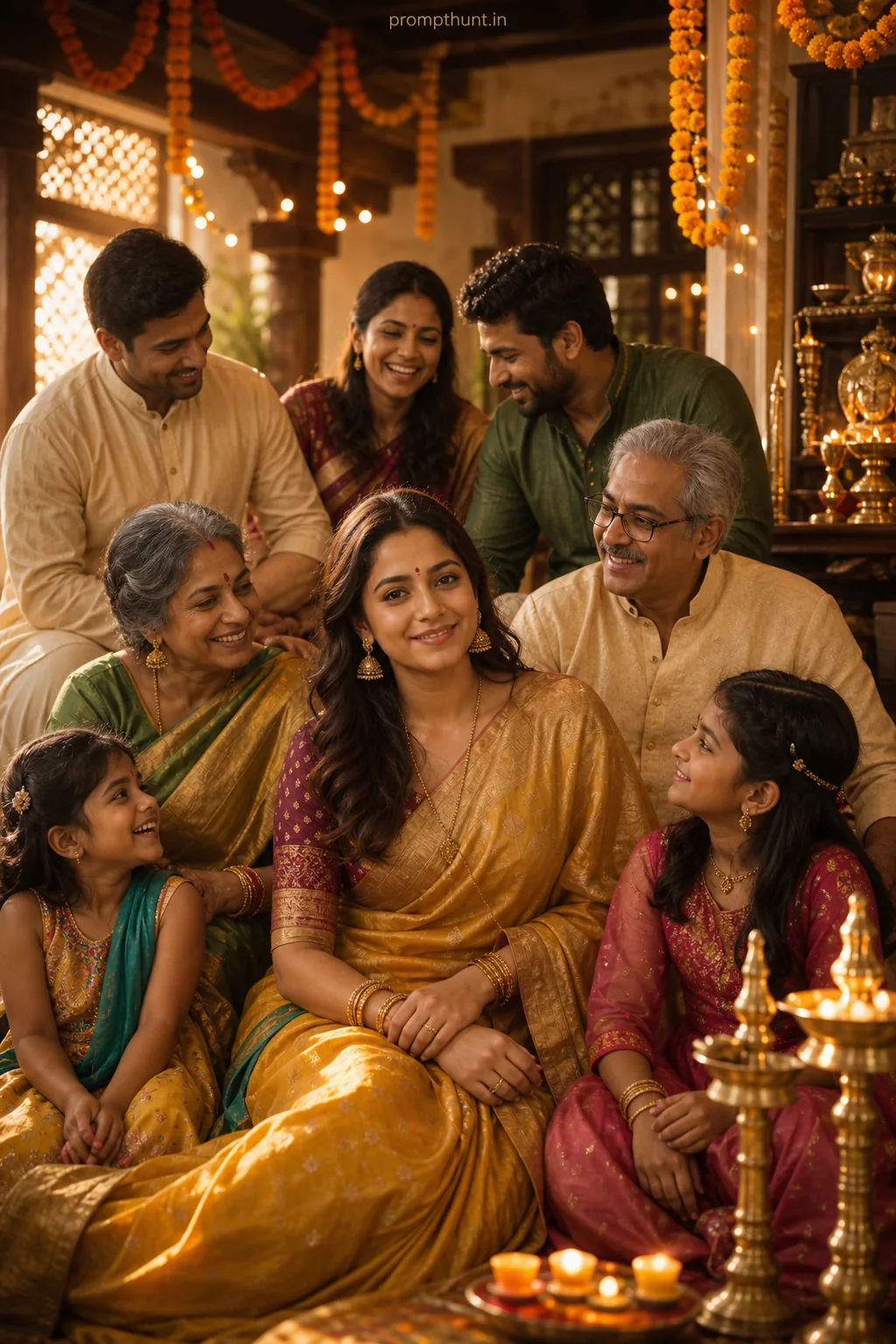
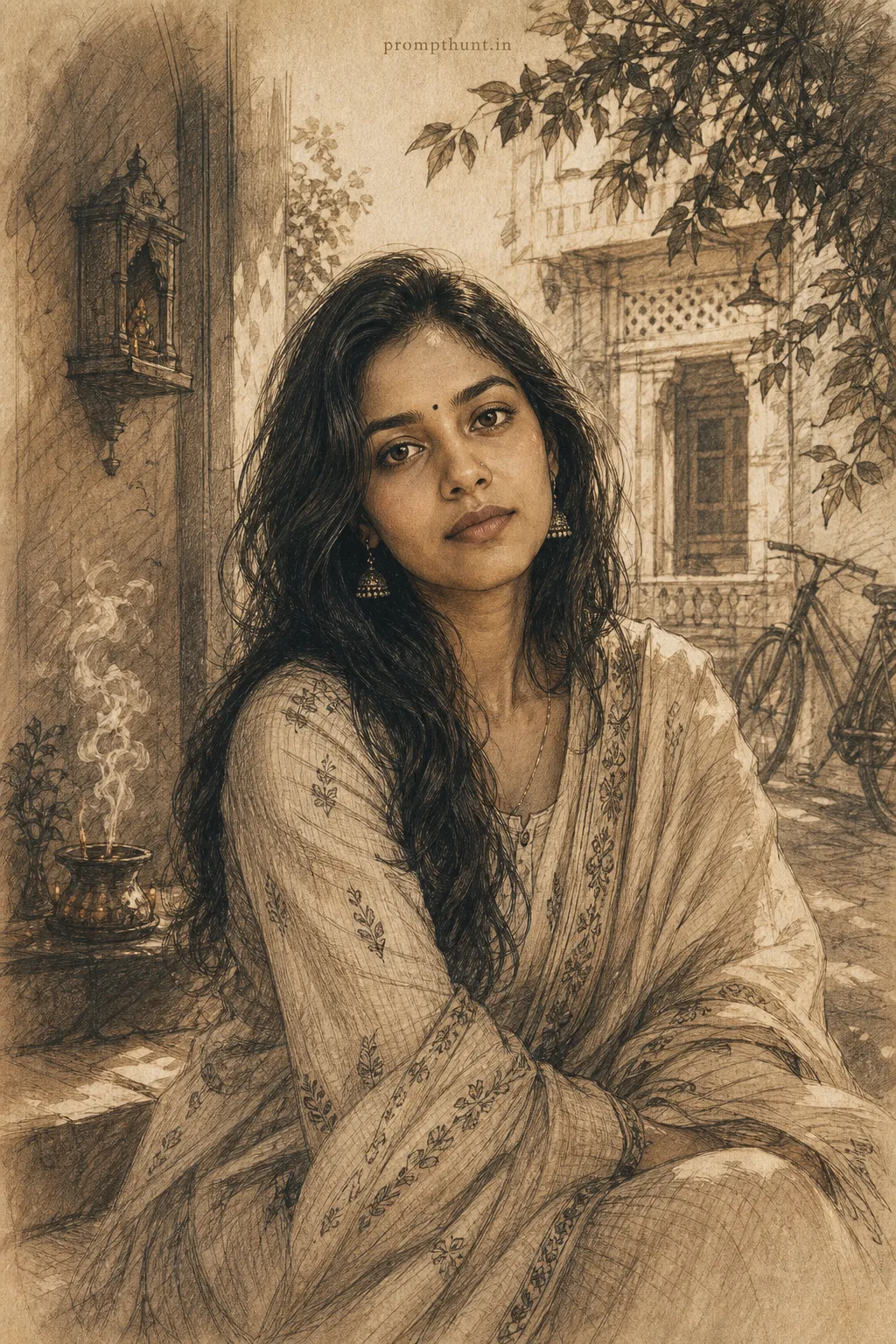
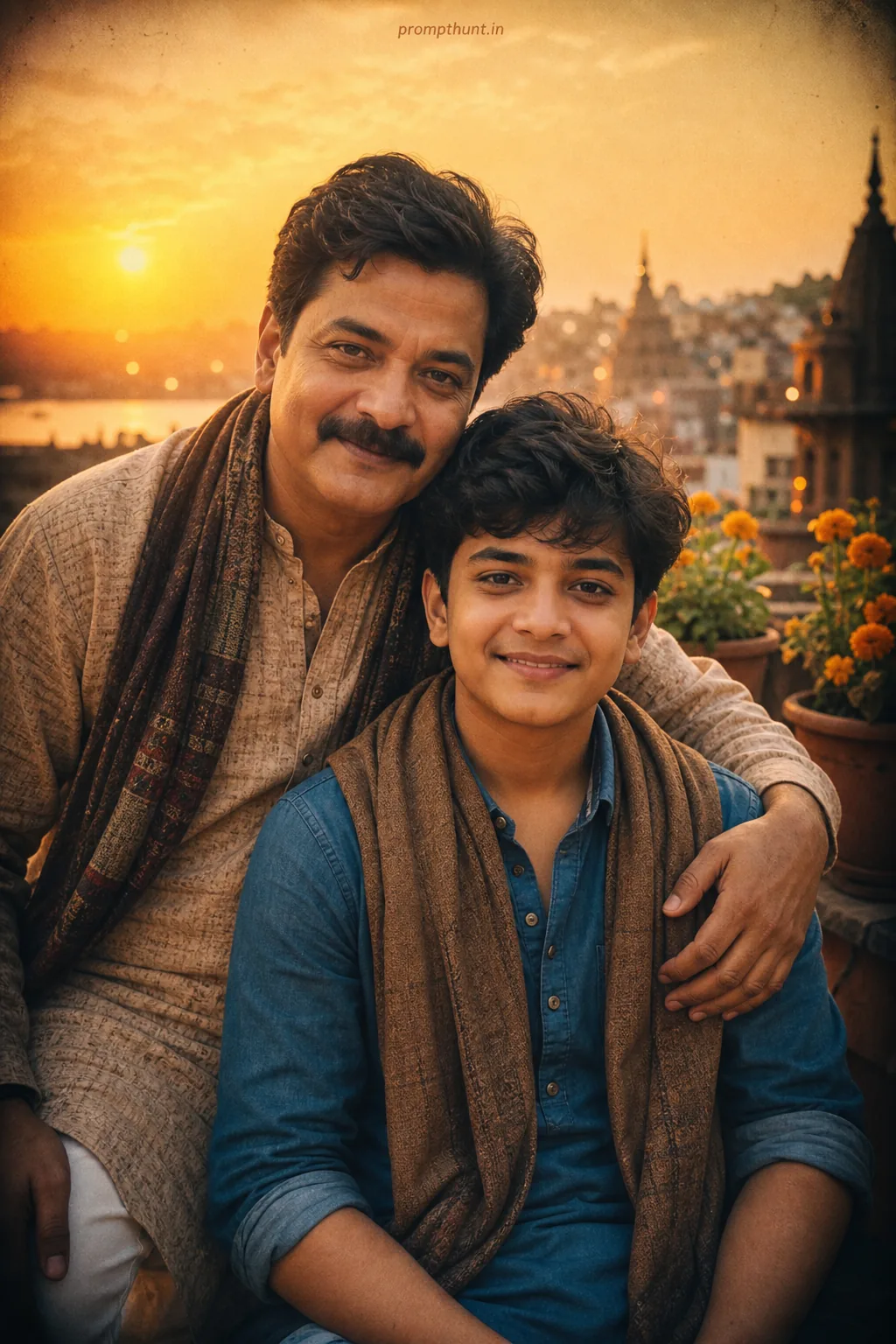
More tested prompts with example results





Frequently asked questions
Do these prompts work in the free version of Gemini?
Yes. Image editing with an uploaded photo works in the free Gemini app and on gemini.google.com, within its daily limits.
Why does Gemini sometimes change my face?
Vague prompts give the model room to reinterpret you. Every prompt here ends with an explicit instruction to keep your face, features and skin tone unchanged; if it still drifts, ask Gemini to keep your face exactly as in the original and regenerate.
Can I use the same prompts in ChatGPT?
Yes. They are plain text and work in any AI photo editor that accepts a photo plus a prompt, including ChatGPT.