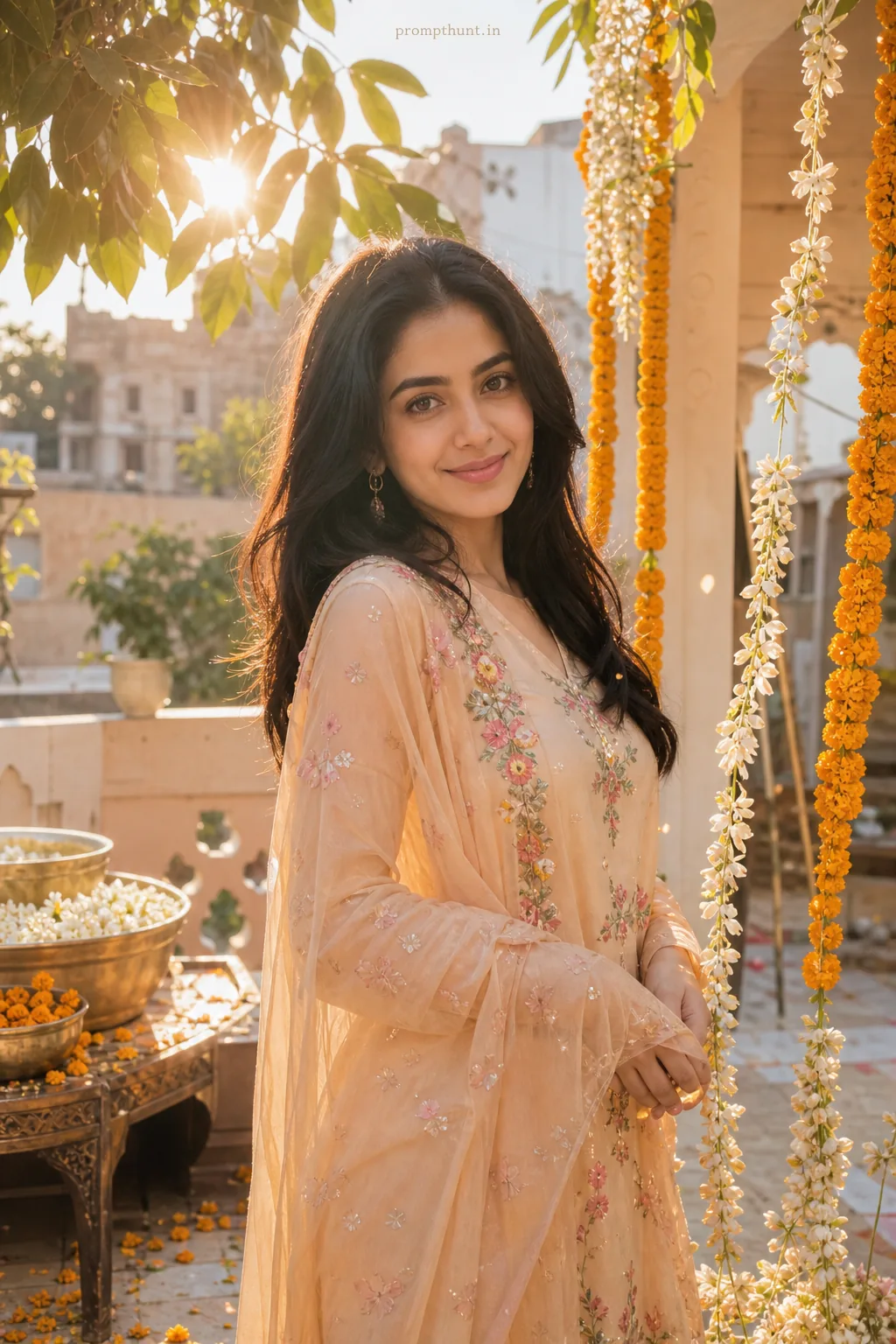
PixVerse AI: How to Use It on Your Phone, With 6 Prompts
PixVerse AI is an AI video app for Android, iPhone and the web that turns a photo or a text prompt into a short video clip. To use it, upload one clear photo, choose image-to-video or a ready effect template, type what should move and how the camera moves, then generate. Six copy-paste prompts for Indian Reels are below.
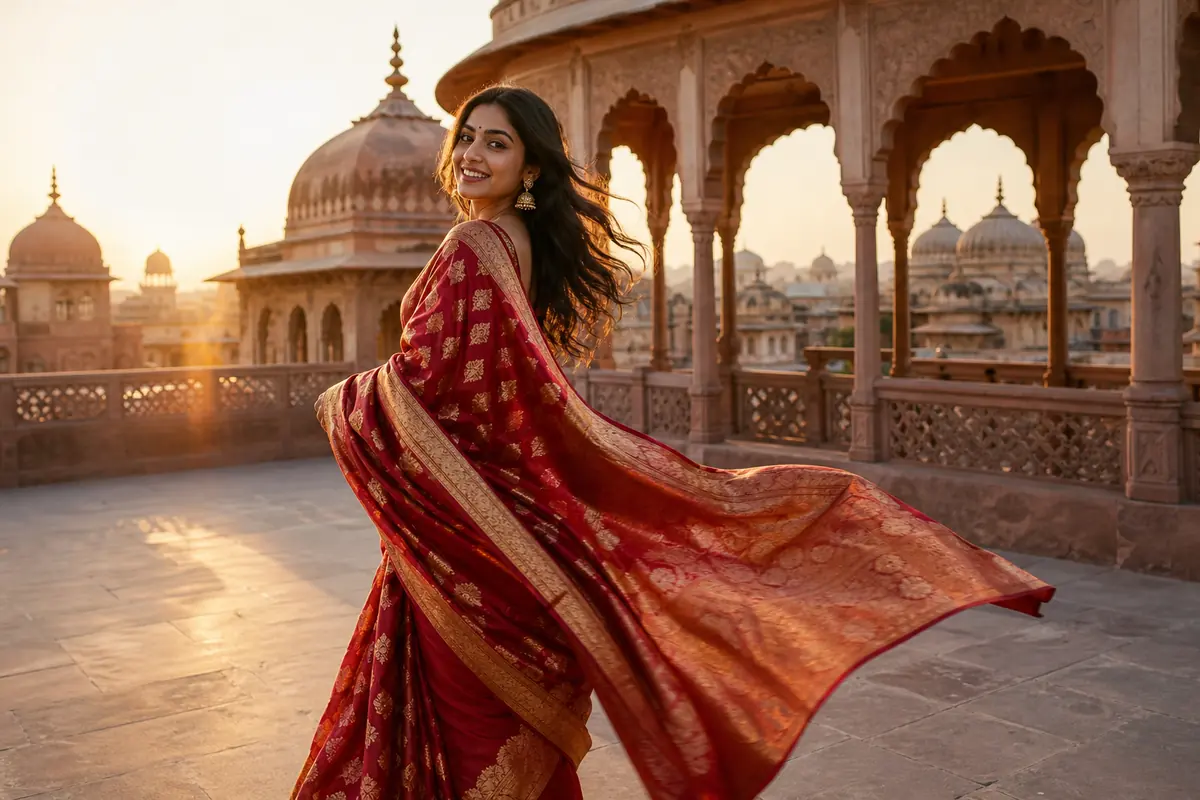
Half your feed has a saree twirl that never happened, or a rain walk shot on a dry day. Most of those clips start the same way: one still photo, one video app, one prompt. PixVerse AI is one of those apps.
Below: what PixVerse does, how to use it on a phone, and six copy-paste PixVerse prompts. The secret is boring: the photo does most of the work and the prompt only says how to move. (We learned this after asking a photo of a sofa to dance.)
What Is PixVerse AI?
PixVerse is an AI video generator. Its official site lists text-to-video, image-to-video, lip sync, a Magic Extend tool, consistent characters and a library of ready-made effect templates. There are apps on Google Play and the App Store, plus a web version at app.pixverse.ai.
You can pick between several video models, including PixVerse's own V6 (described on the site as 1080p video with native audio). Model lists change often, so check the app.
It runs on credits, with a free option and paid plans. Clip cost depends on model, length and quality. We are not quoting numbers, because they change faster than cricket team selections.
How to Use PixVerse AI on Your Phone
- Install the PixVerse AI app from Google Play or the App Store (or open the web app) and sign in.
- Pick a photo: face visible, good light, no beauty filter, full body in frame if the body should move.
- Choose a mode. An effect template is one tap. Image-to-video lets you write your own prompt.
- Paste a prompt about movement and camera, not a new outfit. The photo is the first frame, so it already decides clothes and place.
- Pick 9:16 for Reels if the option shows, keep it short, and generate.
- Check the face in the first and last second. If it drifts, see the fixes table.
Want a new outfit too? Edit the still photo first in Gemini or ChatGPT (our saree AI photo prompts do this), then animate it in PixVerse. One tool for the look, one for the motion.
PixVerse Prompts for Saree and Lehenga Reels
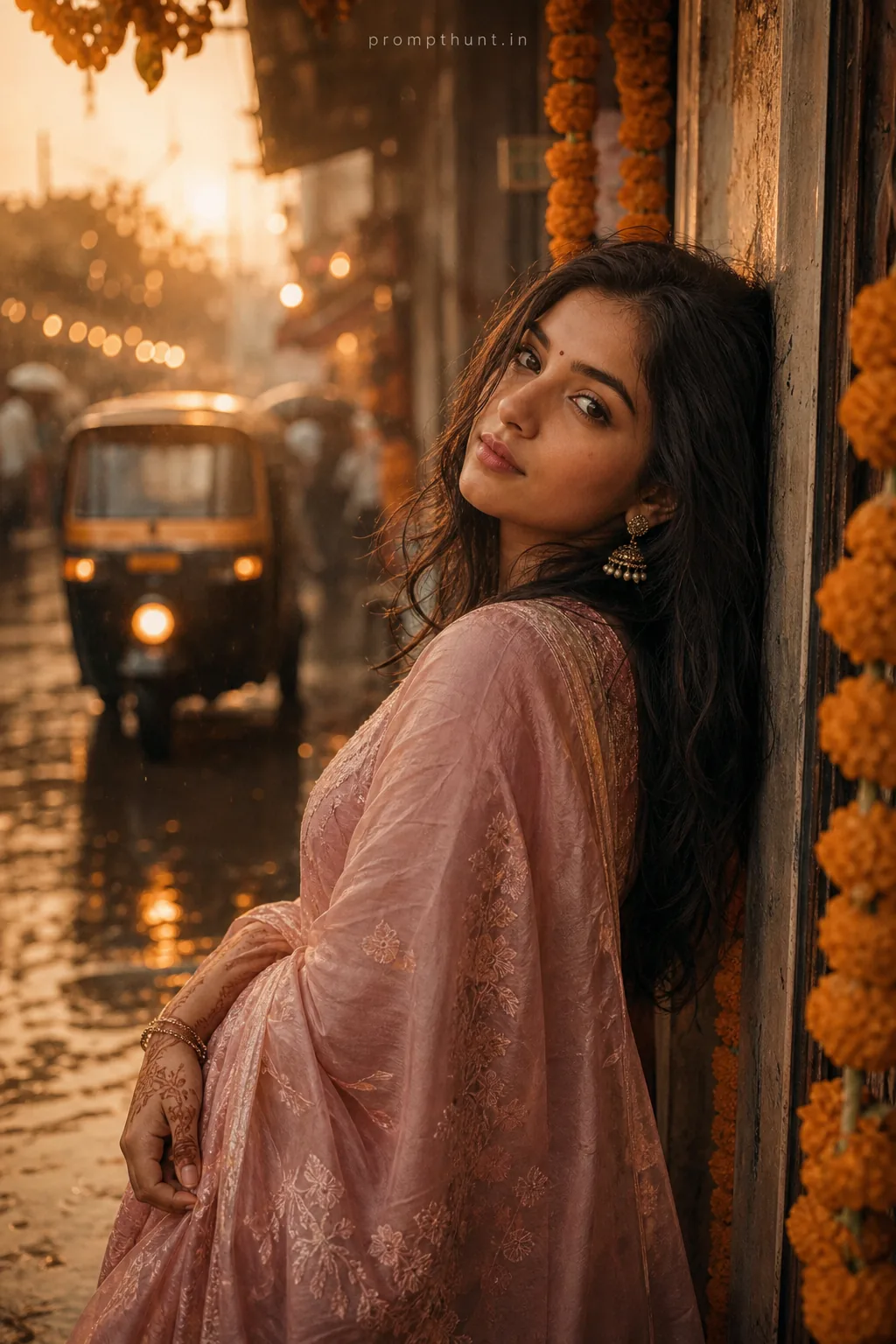
Fabric is the cheat code. A flowing pallu or dupatta looks expensive and hides small AI wobbles. Use a full-length standing photo.
1. Golden Hour Saree Twirl
A slow half-turn is easy for the model and the pallu does the drama.
2. Lehenga Dupatta in the Wind
Only the dupatta and hair move much, so the face stays stable.
PixVerse AI Video Prompts for Boys
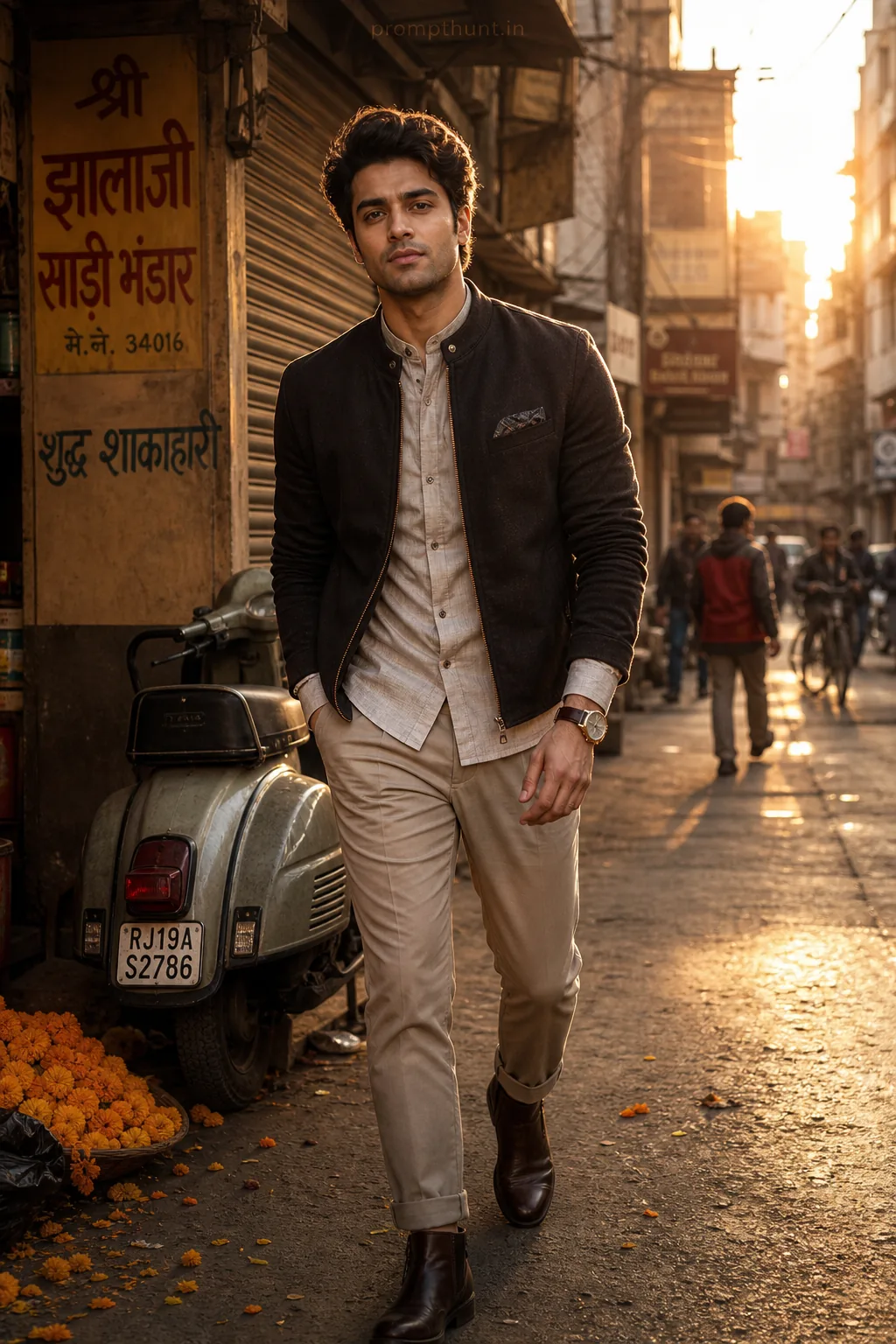
For boys, the reliable PixVerse AI video ideas are walks and slow turns. Fast action (bike stunts, cover drives) melts hands, and the bat grows more joints than you.
3. Mumbai Rain Walk
Walking towards the camera is the most stable body motion AI video does.

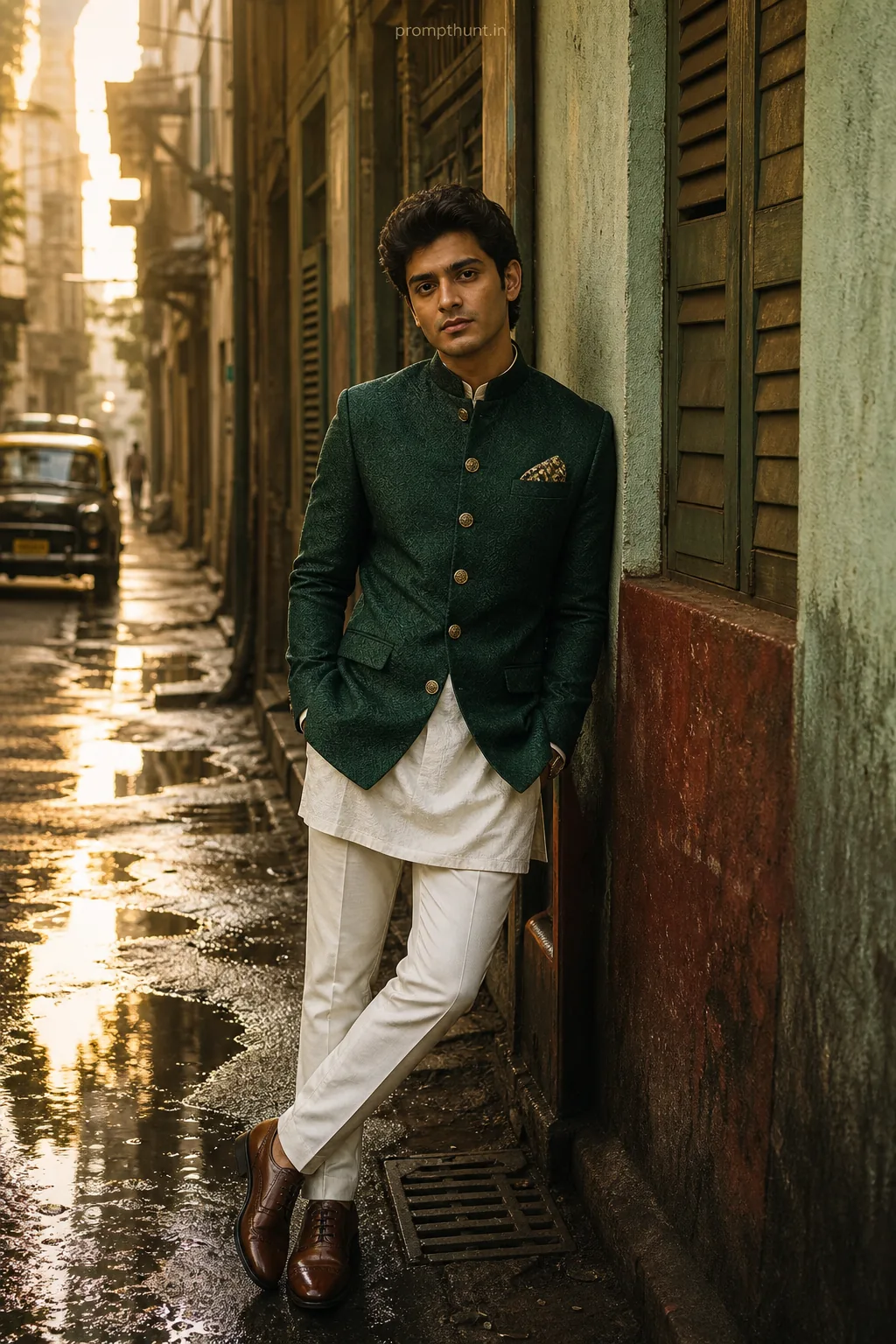
4. Rooftop Kurta Turn for Diwali
Festive look plus one simple move: turn, smile, done.
Need the kurta first? Grab a still look from our Diwali AI photo prompts, then animate it with the prompt above.
PixVerse Prompts for Couples and Family Photos
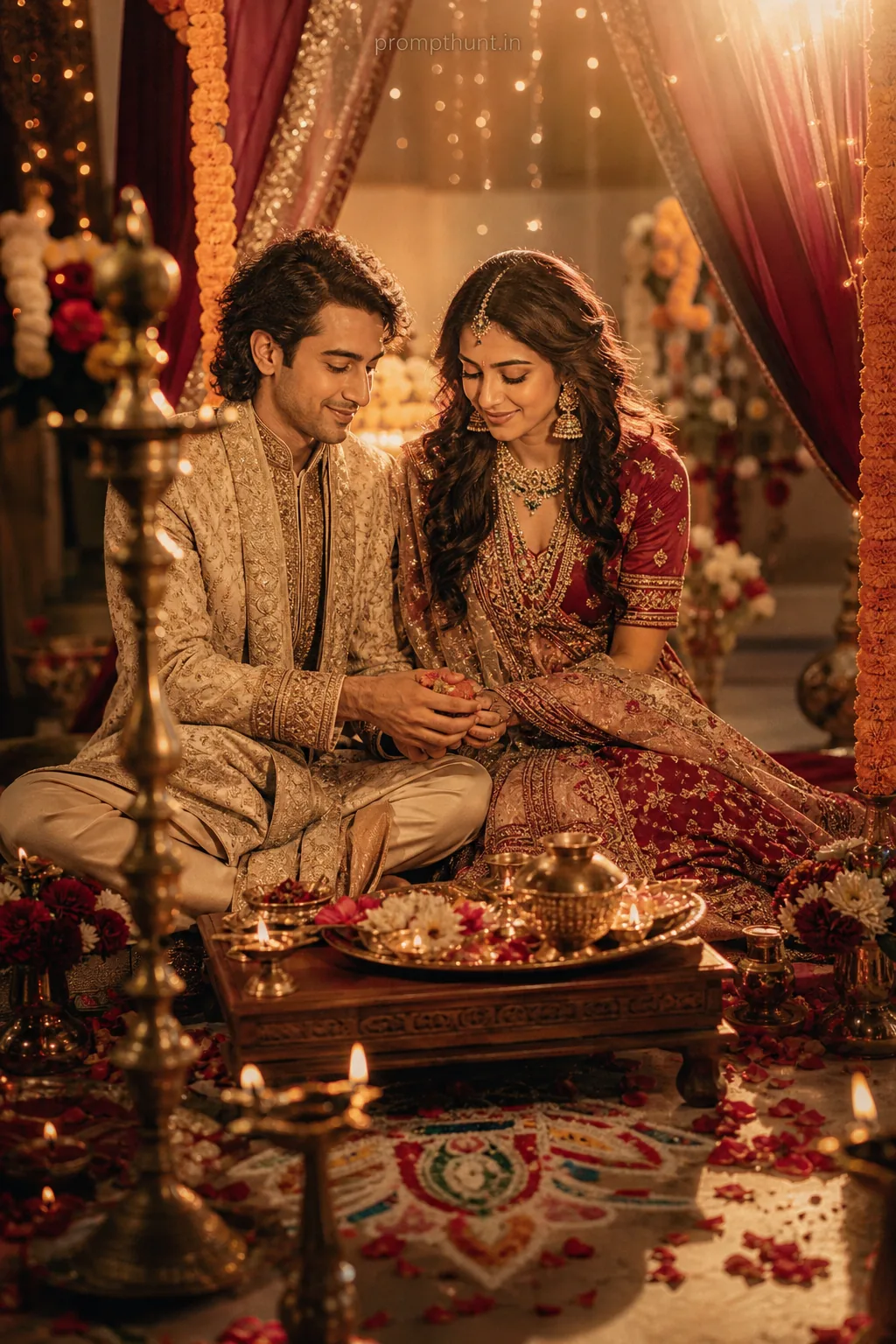
For two people, start from one photo with both of you in it. Two separate selfies force a merge, and AI merges faces like a mixer merges fruit. More still ideas: couple photo prompts.
5. Diwali Sparkler Hug
A side hug from a photo where you already stand close keeps both faces clean.

6. Old Family Photo Comes Alive
Tiny movements look respectful; big ones look spooky.
Ask the family before you post a moving photo of a grandparent. Some people find it lovely. Some people find it a lot.
PixVerse AI Prompt Formula
Writing your own? Fill these slots in order. Motion first, identity lock last.
| Slot | What to write | Example |
|---|---|---|
| Length and shape | Seconds and frame | 5-second vertical video |
| Main action | One clear movement | slowly turns half a circle, then looks back |
| Secondary motion | Fabric, hair, rain, flames | pallu flows in a gentle breeze |
| Camera | One camera move | slow push in, steady, no shake |
| Light and mood | Time of day and colour | warm golden hour, soft lens flare |
| Speed and realism | How it should feel | natural speed, realistic fabric physics |
| Identity lock | Always last | Keep the face, hair, skin tone and body build exactly as in my photo |
One main action per clip. Ask for a twirl, a wave and a jump in five seconds and you get a person-shaped smoothie.
Why Your PixVerse AI Video Looks Weird, and Fixes
| Problem | Fix |
|---|---|
| Face changes halfway | Use a sharper, front-lit photo, ask for one small move, keep the identity lock last. |
| Extra fingers or melting hands | Keep hands still or in pockets, or add 'five fingers on each hand, no extra arms'. |
| Two people merge in a hug | Start from one photo where you already stand close and ask for a side hug. |
| Background bends | Ask for a still or slow camera. Fast pans make walls wave. |
| Weird slow motion | Add 'natural speed, no slow motion' and pick a shorter length. |
| New outfit did not appear | Image-to-video keeps the photo's clothes. Change the outfit in a photo editor first. |
| Gibberish text on signs | Use a photo without signboards, or add 'no readable text'. |
Before You Post Your PixVerse AI Video
- Only use photos of yourself or people who said yes. Especially your best friend.
- Label it as AI. Use the platform's AI label if it shows one (check the app) or say so in the caption.
- No real celebrities, no kids in romantic or glamour clips, nothing that sexualises anyone.
- Read the privacy policy before uploading family photos. They go to a company's servers.
- Check the export for quality and any watermark before posting.
Want a transition instead of a single move? Our ceiling fan transition AI prompt guide covers that trend step by step. More guides live on the articles page.